
CREATING A DJANGO WEB APPLICATION
| We will create the application in the Python programming language using the Django framework. The application will be placed on a web server on the "heroku" platform, ie. on the website http://heroku.org The application on the web server will be connected to the application folder on the client computer, so that it can be developed on the local server (localhost) and then via the git tool, as well as the heroku CLI (Command Line Interface), manage the application on the web server , on the "Heroku" platform. Of course, you first need to create a heroku account. In order for the application to develop, it is necessary to first meet the following requirements: |
Creating a Django Web Application 1- Installation"Logo Creator" application. The example of this application shows how to create a web application using the Django Framework. This video describes what needs to be installed to create this application. |
Requirements-before creating an application
Hosting is required. For example, the site www.heroku.com provides hosting or a domain with Python support.To create a website with Python support you need:
- Create an application on the local computer and then set it to heroku
- Create directly on the heroku and connect to the folder on the local computer
- We will choose the first option, ie creating an application on the premises. Let's do the following:
- Installing the latest version of Python
- Pip installation
- Git installation
- postgreSQL database installation
In the command prompt window, which we started as an administrator, type:
On the webpage https://docs.python-guide.org/starting/install3/win/ instructions are given for installing python on windows.
Another way to install: https://www.foxinfotech.in/2018/08/how-to-download-and-install-python-on-windows-10.html
The python installer can be downloaded at https://www.python.org/downloads/ .
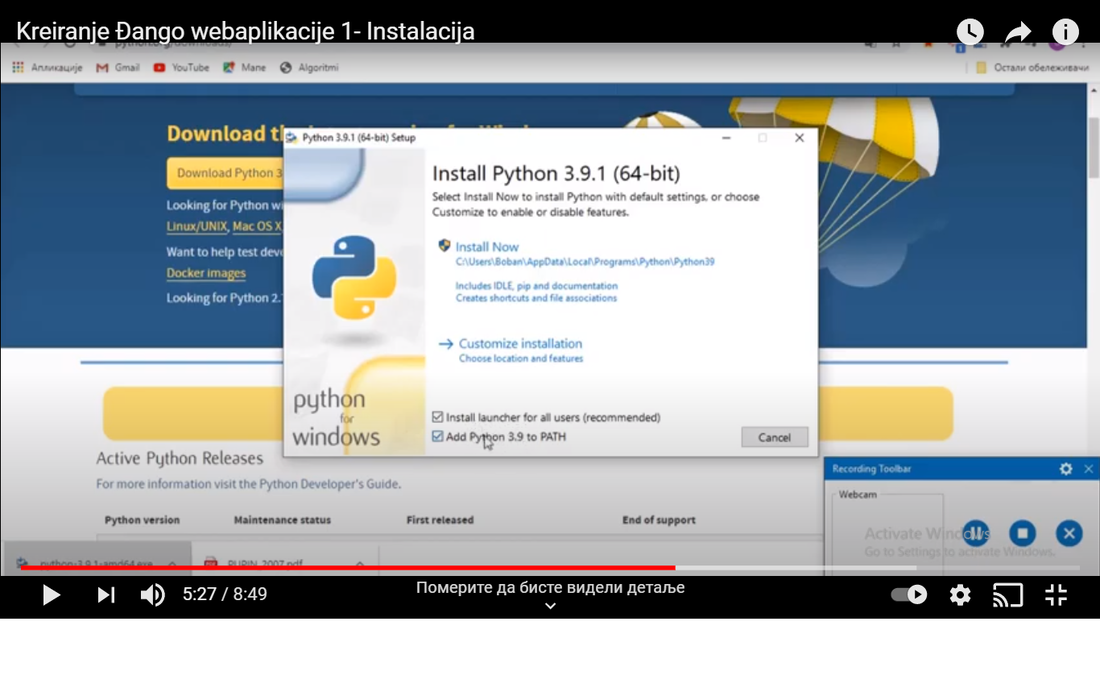
Figure 1: Installing Python on a Windows operating system
When installed, it should be checked within the envirenment variable, the path variable.There must be a path to the installation python folder in this text variable:
C:\Program Files\Python\Python38\ and
C:\Program Files\Python\Python38\Scripts\ or
C:\Users\boban\AppData\Roaming\Python\Python38\Scripts
Installation of PIP
A copy of get-pip.py is required to install pip. After starting CommandPrompt as an administrator you need to type the curl command to download the installation
curl https://bootstrap.pypa.io/get-pip.py -o get-pip.py
Then type the following command:
python get-pip.py
Then check if the pip is installed and the appropriate version. Type in command -prompt
python -m pip install -U pip
Check if and which version of python is installed:
$ python --version
Check if and which version of pip is installed:
$ pip --version
Otherwise, pip is a tool that can be used to install the necessary additional python packages.The postgresql database can be installed using the windows installer
https://www.enterprisedb.com/downloads/postgres-postgresql-downloads#windows
After installation, you should check whether the following paths are entered within PATH:
C:\Program Files\PostgreSQL\12\bin i
C:\Program Files\PostgreSQL\12\lib
| Previous |<Creating web site simple |
Next Creating a Django Web Application - Getting Started>| |