
Graphics in java. Example circular motion
| Previous |<Drawing in window |
Next Java animations-example>| |
Defining a task:
Introduce graphically circular motion of a particle in a plane, which rotates around the center in a uniform circular motion at an angular speed W. Create fields on the dialog for entering the radius r and angular speed W as well as a button for initiating data entry. Create a report view box as well as one image panel.a) Draw only a graph for input without button functionality
b) Based on the default values for r and W, calculate: line velocity V, centripetal acceleration ac and display values in the report field
c) Draw the circular motion of the particle in the initial position, around the center, for the default data
You can read more about circular motion in the article: Circular motion.
Read the circular motion simulation in the article: Simulation of the circular motion of a material point.
Task Solution:
The main application window with all the components should look like: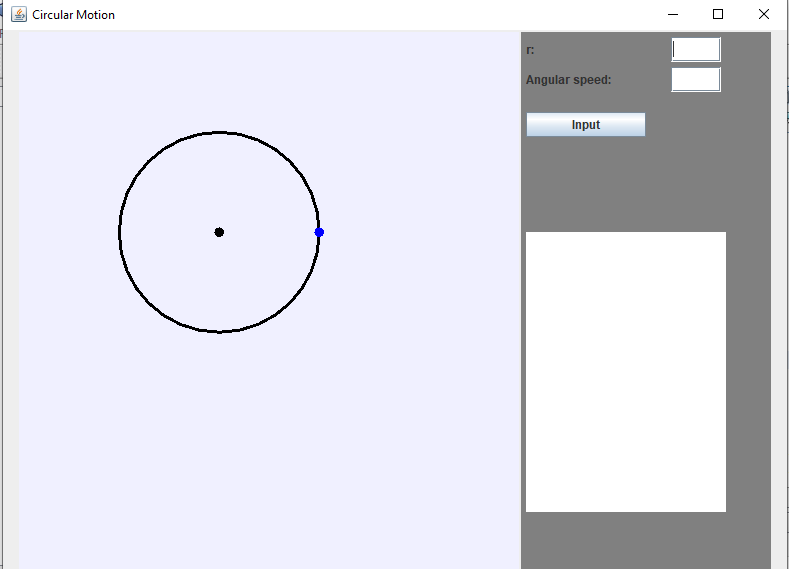
Figure 1: Creating graphical applications in Java. Example: Circular motion GUI.
On the main window of the application, a panel container (container because it contains other components) that fills the entire surface of the window, except the title line, should first be installed. Then, two panels should be made, the left one representing a drawing of the circular motion of the particle and the right one containing the data entry controls. The code that initially displays the graphics is written in the main class constructor and is invoked within the main method, which represents the very beginning of the application.
/**
* @param args the command line arguments
*/
public static void main(String[]args) {
* @param args the command line arguments
*/
public static void main(String[]args) {
CircularMotionAnimation app = new CircularMotionAnimation();
}public CircularMotionAnimation() throws HeadlessException
{
{
createGUI();
drawing.creatingAnEnvironment();
createTimer();
}drawing.creatingAnEnvironment();
createTimer();
/**
* The method by which graphical user interface is created
*/
private void createGUI(){
* The method by which graphical user interface is created
*/
private void createGUI(){
/*Setting Main Frame Properties*/
this.setSize(800, 600);
this.setDefaultCloseOperation(JFrame.EXIT_ON_CLOSE);
this.setTitle("Circular Motion");
/*Creating and setting contentPane Properties*/
JPanel contentPane = new JPanel(new FlowLayout(FlowLayout.CENTER, 2, 2));
/*Creating and setting drawing panel Properties*/
drawing = new Drawing();
drawing.setPreferredSize(new Dimension(500, 600));
drawing.setBackground(new Color(240, 240, 255));
/*Creating and setting right panel Properties*/
JPanel rightPan = new JPanel(null);
rightPan.setPreferredSize(new Dimension(250, 600));
rightPan.setBackground(Color.GRAY);
/*Add panels to contentPane*/
contentPane.add(drawing);
contentPane.add(rightPan);
/*Setting content panel on the frame*/
this.setContentPane(contentPane);
}this.setSize(800, 600);
this.setDefaultCloseOperation(JFrame.EXIT_ON_CLOSE);
this.setTitle("Circular Motion");
/*Creating and setting contentPane Properties*/
JPanel contentPane = new JPanel(new FlowLayout(FlowLayout.CENTER, 2, 2));
/*Creating and setting drawing panel Properties*/
drawing = new Drawing();
drawing.setPreferredSize(new Dimension(500, 600));
drawing.setBackground(new Color(240, 240, 255));
/*Creating and setting right panel Properties*/
JPanel rightPan = new JPanel(null);
rightPan.setPreferredSize(new Dimension(250, 600));
rightPan.setBackground(Color.GRAY);
/*Add panels to contentPane*/
contentPane.add(drawing);
contentPane.add(rightPan);
/*Setting content panel on the frame*/
this.setContentPane(contentPane);
When the panel attributes are set, they are added to the container panel, which itself connects to the window with the setContentPane method.
Since the main class inherited the JFrame, it means that the object of that class is actually the window itself. The official word this was used to get the object of the class in which the given code is located.
Below the constructor, objects are created that represent the components needed to enter the data, set their attributes, and add them to the panel (add method):
/**
* The method by which graphical user interface is created
*/
private void createGUI(){
* The method by which graphical user interface is created
*/
private void createGUI(){
/*Setting Main Frame Properties*/
this.setSize(800, 600);
this.setDefaultCloseOperation(JFrame.EXIT_ON_CLOSE);
this.setTitle("Circular Motion");
/*Creating and setting contentPane Properties*/
JPanel contentPane = new JPanel(new FlowLayout(FlowLayout.CENTER, 2, 2));
/*Creating and setting drawing panel Properties*/
drawing = new Drawing();
drawing.setPreferredSize(new Dimension(500, 600));
drawing.setBackground(new Color(240, 240, 255));
/*Creating and setting right panel Properties*/
JPanel rightPan = new JPanel(null);
rightPan.setPreferredSize(new Dimension(250, 600));
rightPan.setBackground(Color.GRAY);
/*Add panels to contentPane*/
contentPane.add(drawing);
contentPane.add(rightPan);
/*Setting content panel on the frame*/
this.setContentPane(contentPane);
}this.setSize(800, 600);
this.setDefaultCloseOperation(JFrame.EXIT_ON_CLOSE);
this.setTitle("Circular Motion");
/*Creating and setting contentPane Properties*/
JPanel contentPane = new JPanel(new FlowLayout(FlowLayout.CENTER, 2, 2));
/*Creating and setting drawing panel Properties*/
drawing = new Drawing();
drawing.setPreferredSize(new Dimension(500, 600));
drawing.setBackground(new Color(240, 240, 255));
/*Creating and setting right panel Properties*/
JPanel rightPan = new JPanel(null);
rightPan.setPreferredSize(new Dimension(250, 600));
rightPan.setBackground(Color.GRAY);
/*Add panels to contentPane*/
contentPane.add(drawing);
contentPane.add(rightPan);
/*Setting content panel on the frame*/
this.setContentPane(contentPane);
/**
* Creating Input Components
*/
/*Input r*/
JLabel rLab = new JLabel("r:");
rLab.setBounds(5, 5, 100, 25);
rightPan.add(rLab);
rTF = new JTextField();
rTF.setBounds(150, 5, 50, 25);
rightPan.add(rTF);
/*Input angular velocity*/
WTF = new JTextField();
WTF.setBounds(150, 35, 50, 25);
rightPan.add(WTF);
/*Buton enter*/
enterBtn = new JButton("Enter");
enterBtn.setPreferredSize(new Dimension(120, 25));
enterBtn.setBounds(5, 80, 120, 25);
enterBtn.addActionListener(this);
rightPan.add(enterBtn);
/*Button start*/
startBtn = new JButton("Start");
startBtn.setPreferredSize(new Dimension(120, 25));
startBtn.setBounds(5, 120, 120, 25);
startBtn.addActionListener(this);
rightPan.add(startBtn);
/*Button stop*/
stopBtn = new JButton("Stop");
stopBtn.setPreferredSize(new Dimension(120, 25));
stopBtn.setBounds(5, 160, 120, 25);
stopBtn.addActionListener(this);
rightPan.add(stopBtn);
/*JTextArea field for reporting*/
reportTA = new JTextArea();
reportTA.setPreferredSize(new Dimension(120, 25));
reportTA.setBounds(5, 200, 200, 280);
rightPan.add(reportTA);
this.setVisible(true);
* Creating Input Components
*/
/*Input r*/
JLabel rLab = new JLabel("r:");
rLab.setBounds(5, 5, 100, 25);
rightPan.add(rLab);
rTF = new JTextField();
rTF.setBounds(150, 5, 50, 25);
rightPan.add(rTF);
/*Input angular velocity*/
WTF = new JTextField();
WTF.setBounds(150, 35, 50, 25);
rightPan.add(WTF);
/*Buton enter*/
enterBtn = new JButton("Enter");
enterBtn.setPreferredSize(new Dimension(120, 25));
enterBtn.setBounds(5, 80, 120, 25);
enterBtn.addActionListener(this);
rightPan.add(enterBtn);
/*Button start*/
startBtn = new JButton("Start");
startBtn.setPreferredSize(new Dimension(120, 25));
startBtn.setBounds(5, 120, 120, 25);
startBtn.addActionListener(this);
rightPan.add(startBtn);
/*Button stop*/
stopBtn = new JButton("Stop");
stopBtn.setPreferredSize(new Dimension(120, 25));
stopBtn.setBounds(5, 160, 120, 25);
stopBtn.addActionListener(this);
rightPan.add(stopBtn);
/*JTextArea field for reporting*/
reportTA = new JTextArea();
reportTA.setPreferredSize(new Dimension(120, 25));
reportTA.setBounds(5, 200, 200, 280);
rightPan.add(reportTA);
this.setVisible(true);
In the Drawing class, all variables and objects that represent the elements being drawn are first defined. Simple data is defined and some of it is initialized to some initial values in the class, as class attributes. Objects are also declared out of methods but are created (defined) in the constructor. These are the center, the trajectory (circular line) and the particle moving along the trajectory (circle) of radius r (initial values 0.5 m). Since the dimensions of the drawing are in pixels where the width of the drawing is 500 pixels, the circle size of 0.5 is very small, so a scale (200 pixels per 1m) was introduced for drawing.
All three drawing objects are circles ie. ellipse whose rectangle is equal in width and height (square):
public classDrawingextends JPanel
{
Figure 6: Circular motion of the GUI. Class Drawing.In addition to creating these three objects, inside the constructor, you also calculate the line speed of the particle as well as the centripetal acceleration.{
/*
* Atributes
*/
double r = 0.5;////radius of circular path
doubleratio = 200;
doublefi;//Angular displacement
doublet = 0;//time of circular motion
Ellipse2D.Double path;
Ellipse2D.Double center;
Stroke velocityView = new BasicStroke(3, BasicStroke.CAP_SQUARE, BasicStroke.JOIN_MITER);
Shape velocityVector;
Particle particle;
private doubleparticleX;
private final doubleratioV = 1000;
/*Constructor*/
public Drawing() {
/*Creates objects in the drawing according to the initial or entered values
of the radius of the path and the angular velocity*/
public void creatingEnvironment() {
}* Atributes
*/
double r = 0.5;////radius of circular path
doubleratio = 200;
doublefi;//Angular displacement
doublet = 0;//time of circular motion
Ellipse2D.Double path;
Ellipse2D.Double center;
Stroke velocityView = new BasicStroke(3, BasicStroke.CAP_SQUARE, BasicStroke.JOIN_MITER);
Shape velocityVector;
Particle particle;
private doubleparticleX;
private final doubleratioV = 1000;
/*Constructor*/
public Drawing() {
creatingEnvironment();
}/*Creates objects in the drawing according to the initial or entered values
of the radius of the path and the angular velocity*/
public void creatingEnvironment() {
/*creating a circular path*/
path = new Ellipse2D.Double(200 - r * ratio,
200 - r * ratio, 2 * r * ratio, 2 * r * ratio);
/*creating a center of circular object-particle*/
center = new Ellipse2D.Double(200 - 5, 200 - 5, 10, 10);
//Calling method changeTheEnvironmentParameters
changeTheEnvironmentParameters();
//creating velocity vectors
velocityVector = new Line2D.Double(particleX + 5, center.y, particleX + 5, (center.y - particle.v * ratioV));
}path = new Ellipse2D.Double(200 - r * ratio,
200 - r * ratio, 2 * r * ratio, 2 * r * ratio);
/*creating a center of circular object-particle*/
center = new Ellipse2D.Double(200 - 5, 200 - 5, 10, 10);
//Calling method changeTheEnvironmentParameters
changeTheEnvironmentParameters();
//creating velocity vectors
velocityVector = new Line2D.Double(particleX + 5, center.y, particleX + 5, (center.y - particle.v * ratioV));
To remind, the Ellipse2D.Doubleclass is a class from the API (java.awt.geom package) that implements the Shape interface, so it can be passed to the Graphics2D class's draw and fill g2 object within the paint method:
@Override
public void paint(Graphics g)
{
}public void paint(Graphics g)
{
super.paint(g);
Graphics2D g2 = (Graphics2D) g;
g2.setColor(Color.black);
g2.setStroke(new BasicStroke(3));
g2.draw(path);
g2.fill(center);
g2.setColor(Color.blue);
g2.fill(particle);
g2.setStroke(velocityView);
g2.draw(velocityVector);
g2.drawString("V", (float)particleX+10, (float)( center.y - particle.v * ratioV));
}Graphics2D g2 = (Graphics2D) g;
g2.setColor(Color.black);
g2.setStroke(new BasicStroke(3));
g2.draw(path);
g2.fill(center);
g2.setColor(Color.blue);
g2.fill(particle);
g2.setStroke(velocityView);
g2.draw(velocityVector);
g2.drawString("V", (float)particleX+10, (float)( center.y - particle.v * ratioV));
Only the initial circular motion position for the default parameter values is drawn here, while the following will explain how to enter parameters by clicking on the button in the right panel and drawing a new drawing based on the entered values and how to make a circular motion simulation by introducing a timer event.
A button click event in the circular motion example
In order to introduce a button click event, a class object that implements the ActionListener interface is required because that interface contains a method called in response to a button click. It is abstract in the interface and is completed in the class we associate with the interface with the official word implements. In the circular motion example, this is the main class:public class CircularMotionEvents extends JFrameimplements ActionListener
{
Figure 8: Circular motion of the GUI. Window class (JFrame). Connecting to the ActionListener interfaceThose objects that will be used in the actionPerformed method must be attributes (fields) for the class and not local data for the main method because they would not otherwise be able to be used in both methods. As a result, their declaration was moved out of method, and within the class. These are the attributes: inputBtn, rTf, WTF, drawing and reportTA (see image above).{
private JButton inputBtn;
private JTextField rTF;//radius text field
private JTextField WTF;//angular velocity text field
private Drawing drawing;//object drawing of class which inherit JPanel
private JTextArea reportTA;//report object of class JTextArea
//Constructor
public CircularMotionEvents() throws HeadlessException
{
private JTextField rTF;//radius text field
private JTextField WTF;//angular velocity text field
private Drawing drawing;//object drawing of class which inherit JPanel
private JTextArea reportTA;//report object of class JTextArea
//Constructor
public CircularMotionEvents() throws HeadlessException
{
this.setSize(800, 600);
this.setDefaultCloseOperation(JFrame.EXIT_ON_CLOSE);
this.setTitle("Circular motion");
}this.setDefaultCloseOperation(JFrame.EXIT_ON_CLOSE);
this.setTitle("Circular motion");
This class implements the actionPerformed method that is called in response to a button click:
public void actionPerformed(ActionEvent e)
{
{
/*Checks if the start enter is clicked*/
if (e.getSource().equals(inputBtn))
{
}if (e.getSource().equals(inputBtn))
{
/*
* Loads the radius from the text field
* and places the parsed value in the attribute r
* drawing
*/
String rStr = rTF.getText();
drawing.r = Double.parseDouble(rStr);
//Loads the angular velocity from the text field
String wStr = WTF.getText();
drawing.particle.W = Double.parseDouble(wStr);
//blank input fields r and W
rTF.setText(" ");
WTF.setText(" ");
//Re-creates drawing objects
drawing.createEnvironment();
reportTA.append("Ugaona brzina: "+drawing.particle.W +
"rad/s");
reportTA.append("ac="+drawing.particle.ac + "m/s^2");
//Refresh drawing. The Paint method calls the paint method.
repaint();
}* Loads the radius from the text field
* and places the parsed value in the attribute r
* drawing
*/
String rStr = rTF.getText();
drawing.r = Double.parseDouble(rStr);
//Loads the angular velocity from the text field
String wStr = WTF.getText();
drawing.particle.W = Double.parseDouble(wStr);
//blank input fields r and W
rTF.setText(" ");
WTF.setText(" ");
//Re-creates drawing objects
drawing.createEnvironment();
reportTA.append("Ugaona brzina: "+drawing.particle.W +
"rad/s");
reportTA.append("ac="+drawing.particle.ac + "m/s^2");
//Refresh drawing. The Paint method calls the paint method.
repaint();
package kruznokretanje;
import java.awt.geom.Ellipse2D;
public classParticleextends Ellipse2D.Double
{
Figure 10: Circular motion of the GUI. Particle class.In the Drawing class, the createEnvironment method was added, which contains the code that creates all the drawing objects. The drawing now also has vector velocities whose length depends on the intensity. After launching the application, the drawing will look like:import java.awt.geom.Ellipse2D;
public classParticleextends Ellipse2D.Double
{
/*
* Atributes
*/
public doubleW; = 10;//Angular velocity
public doublev;//linear speed
public doubleac;//centripetal acceleration
/*Constructor*/
public Particle( double x, double y, double w, double h) {
}* Atributes
*/
public doubleW; = 10;//Angular velocity
public doublev;//linear speed
public doubleac;//centripetal acceleration
/*Constructor*/
public Particle( double x, double y, double w, double h) {
super(x, y, w, h);//Invocation of constructor of inherited class
}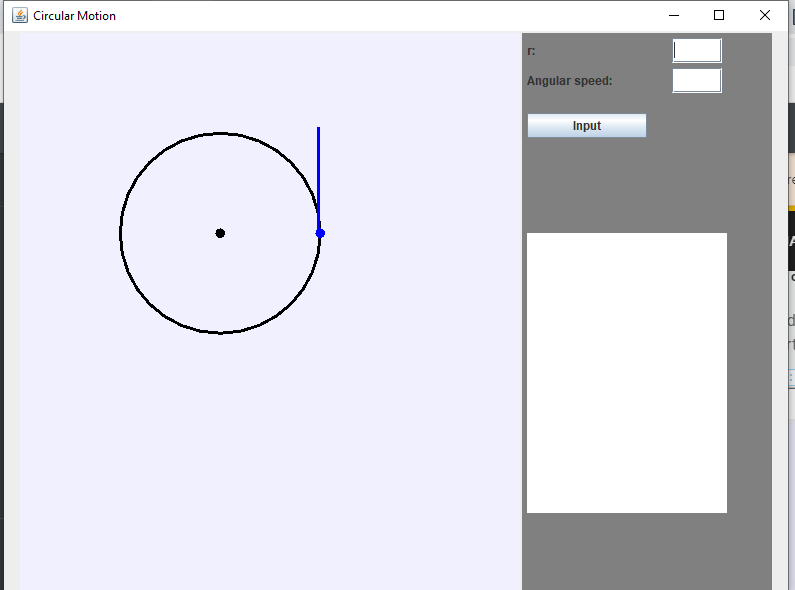
Figure 11: Circular motion of the GUI. App window layout.
The velocity vector is represented only by a line 3 pixels thick. If you entered some other information into the text boxes, for example r = 0.7m and W = 1rad / s and clicked on the button, there would be a change in the drawing: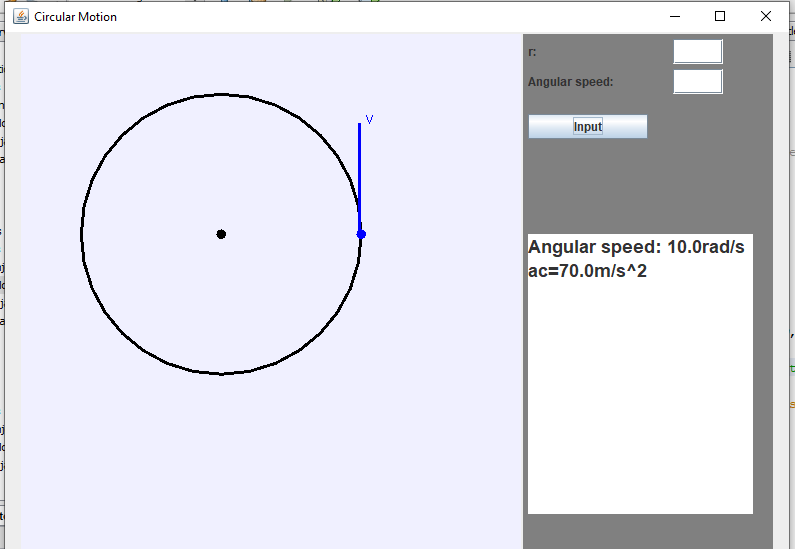
Figure 12: Circular movement of the GUI. App window layout - complete.
The path radius is now increased, as is the line speed, and data is entered on the report field. Create method createEnvironment will look like: /*Creates objects in the drawing according to the initial or entered values
of the radius of the path and the angular velocity*/
public void createEnvironment()
{
}public void createEnvironment()
{
path = new Ellipse2D.Double(200 - r * ratio,
200 - r * ratio, 2 * r * ratio, 2 * r * ratio);
center = new Ellipse2D.Double(200 - 5, 200 - 5, 10, 10);
/*x koo upper left corner of the rectangle in which it is inscribed
ellipse (Particle class inherits Ellipse2D.Double)*/
particleX = center.x + r * ratio;
/*creating a circular object-particle*/
particle = new Particle(particleX, center.y, 10, 10);
particle.v = r * particle.W;//the linear velocity of a particle moving along a circle
particle.ac = particle.v * particle.v / r;//centripetal acceleration
/*Velocity vector*/
velocityVector = new Line2D.Double(particleX + 3, center.y,
particleX + 3, ( center.y - particle.v * ratioV));
}200 - r * ratio, 2 * r * ratio, 2 * r * ratio);
center = new Ellipse2D.Double(200 - 5, 200 - 5, 10, 10);
/*x koo upper left corner of the rectangle in which it is inscribed
ellipse (Particle class inherits Ellipse2D.Double)*/
particleX = center.x + r * ratio;
/*creating a circular object-particle*/
particle = new Particle(particleX, center.y, 10, 10);
particle.v = r * particle.W;//the linear velocity of a particle moving along a circle
particle.ac = particle.v * particle.v / r;//centripetal acceleration
/*Velocity vector*/
velocityVector = new Line2D.Double(particleX + 3, center.y,
particleX + 3, ( center.y - particle.v * ratioV));
These two new objects must be drawn in the paint method that now looks like:
@Override
public void paint(Graphics g)
{
}public void paint(Graphics g)
{
super.paint(g);
Graphics2D g2 = (Graphics2D) g;
g2.setColor(Color.black);
g2.setStroke(new BasicStroke(3));
g2.draw(path);
g2.fill(center);
g2.setColor(Color.blue);
g2.fill(particle);
g2.setStroke(velocityView);
g2.draw(velocityVector);
g2.drawString("V", (float)particleX+10, (float)( center.y - particle.v * ratioV));
}Graphics2D g2 = (Graphics2D) g;
g2.setColor(Color.black);
g2.setStroke(new BasicStroke(3));
g2.draw(path);
g2.fill(center);
g2.setColor(Color.blue);
g2.fill(particle);
g2.setStroke(velocityView);
g2.draw(velocityVector);
g2.drawString("V", (float)particleX+10, (float)( center.y - particle.v * ratioV));
| Previous |<Drawing in window |
Next Java animations-example>| |