
MicroPython — serial communication (a bridge to Processing)
Connecting the micro:bit and the computer
In this lesson we learn how the micro:bit sends data to the computer and how that data can be used for:
- data visualisation
- graphics and animations
- interactive applications
- mini games and controllers
Processing (Python mode) lets us turn this data into graphics in real time.
This is the first time in the course that the micro:bit becomes part of a bigger system. The micro:bit is no longer just a device that shows LED animations — now it communicates with another program on the computer.
This is the key link between:
- the physical world (sensors and movement)
- the MicroPython program
- graphical applications on the computer
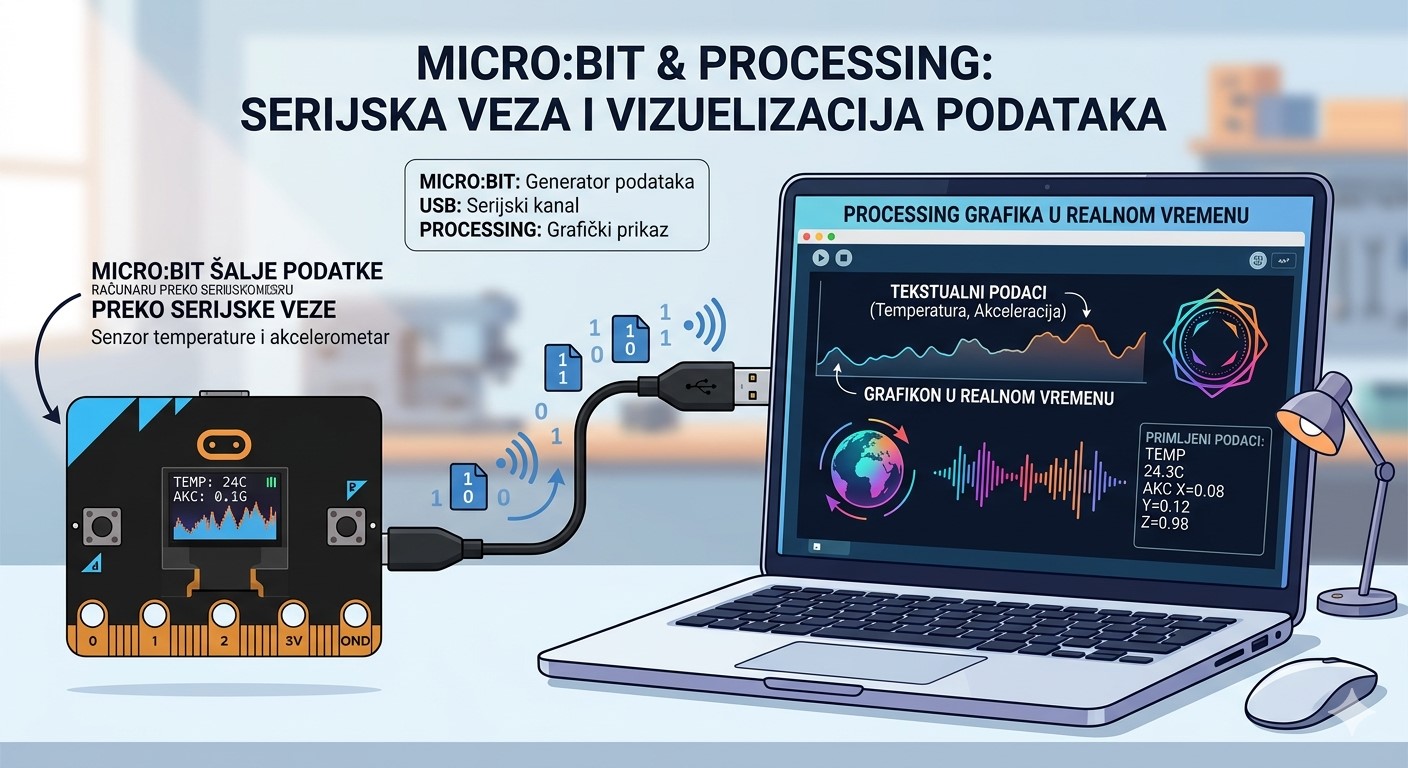
What is serial communication?
Serial communication is a way for devices to exchange data one piece after another — like text messages.
In our case:
- the micro:bit ➝ sends data
- the computer ➝ receives and processes the data
You can imagine that:
- the micro:bit "writes messages"
- Processing reads them and turns them into graphics
For example:
- the micro:bit measures the temperature
- it sends the number to the computer
- Processing draws a temperature chart
- tilt
- buttons
- movement
- light
UART — serial communication on the micro:bit
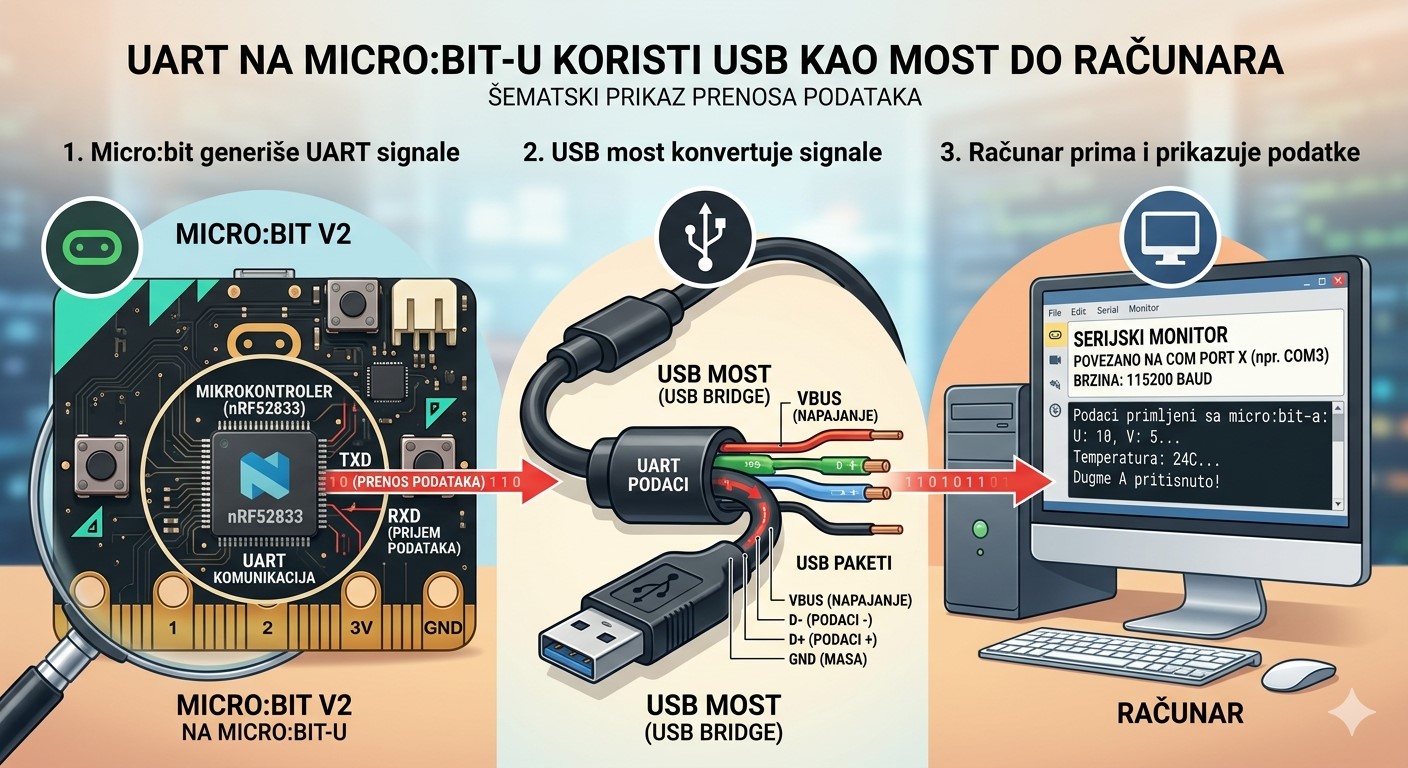
MicroPython uses the built-in uart interface
to communicate with the computer over the USB cable.
UART means:
Universal Asynchronous Receiver/Transmitter
It is a hardware module that makes possible:
- sending data
- receiving data
- communication between devices
On the micro:bit the UART is connected to the USB interface, so the computer can receive data directly.
Although we use a USB cable, inside, the micro:bit still uses UART communication. Here USB is a "bridge" between the computer and the micro:bit.
To use the UART in MicroPython, we need to import the module:
from microbit import *
The object uart
is already built into this module.
What can we send?
Most often we send:
- numbers (temperature, tilt, light)
- text messages
- several values at once
For example:
23
or:
23,128
In this case:
- 23 can be the temperature
- 128 can be the value of the light sensor (0–255)
Try to imagine:
- What would a message for the X and Y tilt look like?
- What would a message for the temperature and button A look like?
120,-340
24,1
Example: sending the temperature to the computer
Now we write our first real serial program.
The micro:bit will:
- read the temperature
- turn the number into text
- send the data to the computer every second
from microbit import *
import utime

# Starting UART communication
uart.init(baudrate=115200)

while True:

    # Reading the temperature
    temp = temperature()

    # Sending the temperature to the computer
    uart.write(str(temp) + "\r\n")

    # A one-second pause
    utime.sleep(1)
baudrate=115200
sets the speed of the data transfer.
The computer and the micro:bit must both use the same communication speed.
Why do we use str()?
The function uart.write()
sends text.
That is why we must first turn the number into text:
str(temp)
Without that the program would report an error.
The end of a message — the newline character
At the end of a message we add:
"\r\n"
or, more simply:
"\n"
This marks the end of one message.
Thanks to that the computer knows:
- where one value ends
- where the next one begins
When the micro:bit sends
\n,
it is as if it moved to a new line of text.
The computer can then receive something like this:
23
23
24
24
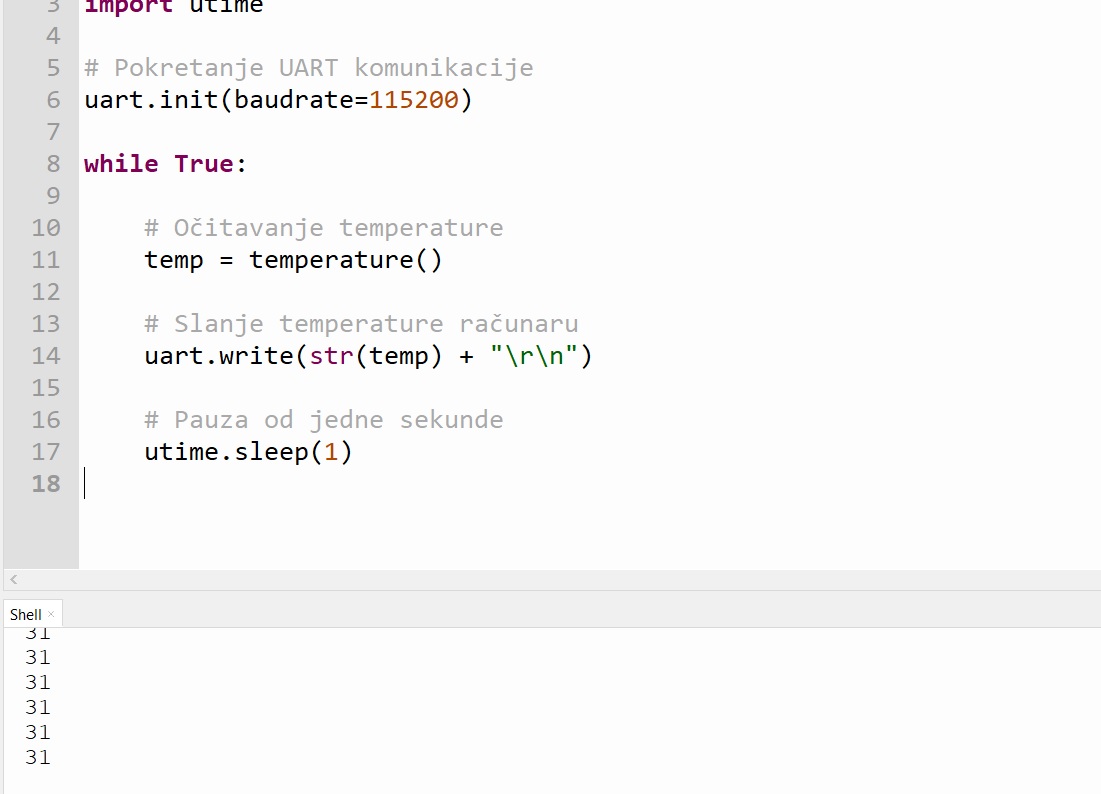
Checking the UART communication
We can watch the data that the micro:bit sends in:
- the Thonny Shell window
- the MakeCode Serial Monitor
- other serial monitor tools
Before connecting with Processing, we always check the communication in the shell window first.
The serial monitor (shell) shows the text that the micro:bit sends to the computer.
If Thonny reports:
Device is busy or does not respond
and the micro:bit is visible as a COM device,
the MicroPython firmware may not be installed correctly.
Solution:
- Tools → Options → Interpreter
- choose BBC micro:bit
- click on Install or update MicroPython
- wait for the installation to finish
Run the previous program and open the serial monitor. If you see numbers that change every second, the communication works correctly.
MakeCode serial documentation:
Why is this important for Processing?
Processing can use serial data for:
- real-time charts
- animations
- interactive projects
- mini games
For example:
- a chart of the temperature over time
- controlling an object by tilting the micro:bit
- a visual alarm when the temperature rises
The micro:bit becomes a "controller" for a program on the computer. This is the basis of:
- IoT systems
- interactive installations
- gaming controllers
- sensor visualisation
Mini task
Write a program that:
- sends the temperature or the tilt
- sends the data every second
- uses the newline character
\n
Think about it:
- What would the message look like?
- How could Processing show that data?
Try to send two values at once. For example:
24,512
What comes next?
In the next lessons we will learn:
- how Processing reads serial data
- how charts and animations are drawn
- how the micro:bit becomes a game controller
This is a real bridge between:
- hardware
- programming
- graphics
- interactive systems
Going further — advanced serial communication
When the micro:bit sends data to the computer, it is important that the communication is:
- clearly formatted
- consistent
- easy to process
In more serious projects the way data is sent is just as important as the program itself.
When two programs communicate, they must "agree" on what a message looks like. If the format is not clear, the computer will not know how to understand the data.
1. Sending several values at once
We often want to send several pieces of data at the same time.
For example:
- the temperature
- the tilt along the X axis
- the state of a button
One of the most common ways is to use a comma as a separator.
from microbit import *
import utime

while True:

    temp = temperature()
    x = accelerometer.get_x()

    # Making one text message
    message = str(temp) + "," + str(x) + "\n"

    # Sending the message to the computer
    uart.write(message)

    utime.sleep(1)
The computer can receive something like this:
23,145
24,132
24,160
Here the comma is a delimiter (a data separator). Later Processing can split the text with the function:
split(',')
In this way we get several separate values from one message.
2. A mini communication protocol
In bigger projects it is useful to label exactly what we are sending.
In this way we make a small communication protocol.
For example:
uart.write("TEMP:" + str(temperature()) + "\n")
or:
uart.write("DATA:" + str(temp) + "," + str(x) + "\n")
Processing can then check:
- whether the message starts with
DATA: - what type of data has arrived
- how the message should be processed
Network protocols, IoT devices and servers also use clearly defined message formats. For example:
- HTTP
- JSON
- MQTT
3. Stable communication
For serial communication to work reliably, you need to follow a few rules.
- always use
\nat the end of a message - send data at regular intervals
- do not send too much data at once
Sending too fast can cause:
- a congested port
- messages joined together
- delayed graphics
- lost data
Try removing:
utime.sleep(1)
That is why we often use:
utime.sleep()
or more precise time intervals.
4. Mini project — a temperature chart
Now we already know enough for the first real visualisation project.
The idea of the project:
- the micro:bit sends the temperature
- Processing receives the data
- Processing draws a chart in real time
Such a system can show:
- temperature
- light
- tilt
- movement
- How do you keep the old values?
- How do you move the chart to the left?
- How do you scale the data?
- How do you change the colour when the temperature rises?
This is the first step towards:
- data visualisation
- interactive dashboards
- real-time systems
5. Two-way communication
So far the micro:bit has only sent data.
But serial communication can also go:
- computer ➝ micro:bit
- micro:bit ➝ computer
This means that the computer can send commands to the micro:bit.
For example:
LED_ON
MicroPython can then react:
if uart.any():

    # Reading the message that has arrived
    command = uart.read().decode().strip()

    # Checking the command
    if command == "LED_ON":
        display.show(Image.HEART)
What do these functions do?
uart.any()checks whether there is a new messageuart.read()reads the data that has arriveddecode()turns bytes into textstrip()removes spaces and the newline
In this way the computer can control hardware. This is the basis of:
- robotics
- IoT systems
- interactive installations
- gaming controllers
What have you actually learned?
In this area you have learned:
- how devices exchange data
- how serial communication works
- how a message format is defined
- how hardware and graphics are connected
- how to think about a whole system
This is a big step:
- from simple MicroPython
- to real interactive systems
Programming is not just writing code. Real systems often have:
- several devices
- communication
- graphics
- sensors
- data exchange
An architecture diagram — micro:bit ↔ Serial ↔ Processing
To understand how the whole system works, it is useful to look at it as several connected layers.
Each layer has its own role:
- one collects the data
- another carries it
- the third shows and processes it
In big systems different parts of a program often have different responsibilities. This is called separation of concerns.
1. The physical layer — hardware
The first layer is the micro:bit device itself and its sensors.
This includes:
- the temperature sensor
- the accelerometer
- the compass
- buttons A and B
- the LED matrix
This layer:
- measures data from the real world
- turns it into numbers
- passes it on to the program
If you tilt the micro:bit, the accelerometer returns numerical values that represent the tilt of the device.
2. The communication layer — the serial connection
The second layer carries the data between the micro:bit and the computer.
Here we use:
- a USB cable
- the UART interface
- text messages
For example:
23,145
or:
120,-45
At the end of a message we usually send:
"\n"
This marks the end of one line of data.
The serial layer does not "understand" the meaning of the data. It only carries text from one device to another.
3. The application layer — Processing
The third layer is the program on the computer.
In our case it is Processing Python Mode.
This layer:
- reads the serial data
- separates the values
- processes the information
- draws graphics and animations
For example, it:
- moves an object on the screen
- draws a temperature chart
- reacts to a button press
Does the micro:bit need to know what the chart looks like? Or is its job only to send data?
A visual diagram of the system
[ Sensors / Buttons ]
          ↓
       micro:bit
          ↓
   uart.write("23,145\n")
          ↓
      USB / Serial
          ↓
  Processing Serial.read()
          ↓
   Parsing (split)
          ↓
 Graphics / Animation / Game
Every arrow represents data being passed from one part of the system to another.
In this diagram the data moves in only one direction:
- sensor ➝ micro:bit
- micro:bit ➝ computer
- computer ➝ graphics
An example of the data flow
Let us look at one complete example.
What happens when a student tilts the micro:bit?
- The accelerometer measures the tilt
- MicroPython gets numerical values
- The program sends the message:
120,-45 - Processing reads the whole line
- The program separates the data using
split() - An object on the screen changes its position
All of this happens very fast — almost in real time.
The system reacts immediately after the sensor changes. This makes possible:
- interactive games
- motion controllers
- live visualisation
Separation of concerns
In our system every part has a clear role.
- the micro:bit ➝ measures and sends the data
- serial communication ➝ carries the data
- Processing ➝ shows and processes the data
This approach is used in:
- IoT devices
- robotics
- industrial systems
- interactive installations
When every part of the system has a clear job, the program becomes:
- easier to understand
- easier to fix
- easier to extend
An advanced perspective
We can also look at this system as a real software architecture.
- The client (micro:bit) ➝ generates data
- The communication channel ➝ the serial protocol
- The Processing engine ➝ processes and shows the data
Similar principles are used in:
- IoT networks
- industrial sensors
- robotics
- game controllers
The technologies can be different, but the basic idea stays the same.
A mini task for thinking
Imagine the following system:
- the micro:bit sends x, y and the temperature
- Processing reacts only when the temperature goes above 30°C
Question:
Where should the logic of the condition be written?
- If you want less data ➝ the logic can be on the micro:bit
- If you want more flexible graphics ➝ the logic can be in Processing
Here we are no longer thinking only about code — but about the architecture of the whole application.
a serial port can be used by only one program. Before running the Processing/py5 program, close the serial monitor in Thonny or MakeCode (in Thonny: Stop, then switch the interpreter to Local Python 3). Otherwise you get a "port is busy" error (Access denied / Resource busy).
Check your knowledge
Open the quiz
Mini quiz: the serial connection
1. Why do we add \n at the end of a message?
2. What happens if the micro:bit sends at 115200 and the computer reads at 9600?
3. Can Thonny and py5 use the same port at the same time?