
Windows Forms and a MySQL database – a car showroom example
In the previous lesson an SQLite database was used, while this example shows how to connect an application to a MySQL database. Here we show a Windows Forms application, "Car Showroom", which lets you enter data about cars into the database – brand, model, year and price – and shows the data from the database in a DataGridView control.
The MySQL server runs in the XAMPP environment.
Creating the MySQL database and table
First you need to create a MySQL database and a table for the cars. You can use the following SQL query in phpMyAdmin or in the MySQL Workbench tool:
CREATE DATABASE CarShowroom;
USE CarShowroom;

CREATE TABLE Cars(
    Id INT AUTO_INCREMENT PRIMARY KEY,
    CarBrand VARCHAR(50),
    Model VARCHAR(50),
    Year INT,
    Price DECIMAL(10, 2));
Another way is to create the database and the table dynamically, in code, which is shown below. Let us now create a new project called AutoSalonApp!
Creating a new Windows Forms application
Start Visual Studio and create a new project called AutoSalonApp, see figure 1:
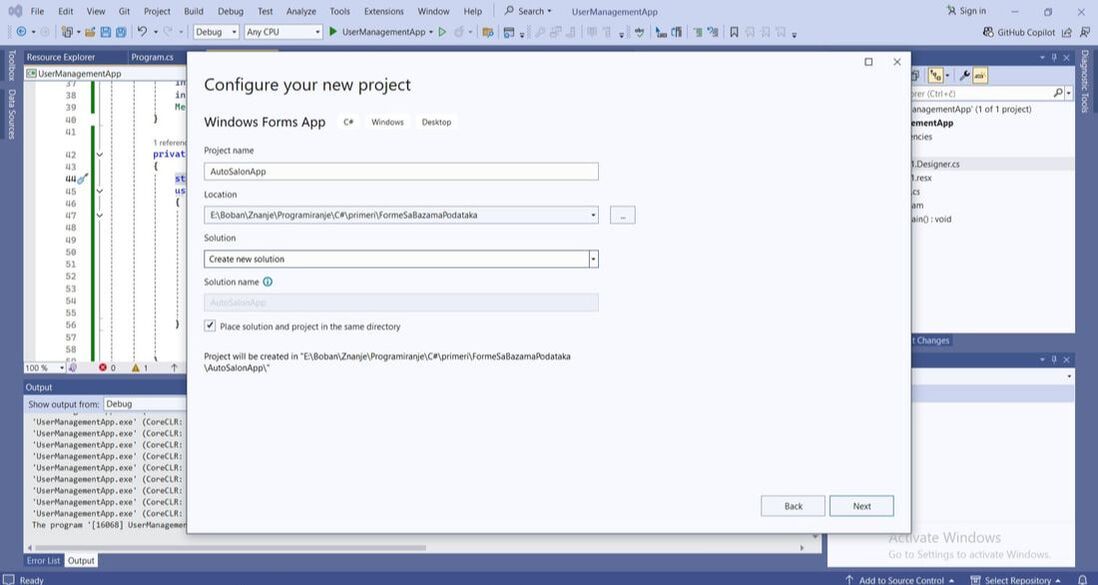
The application is created in a similar way to the previous example, Connecting to a database in C# – an example.
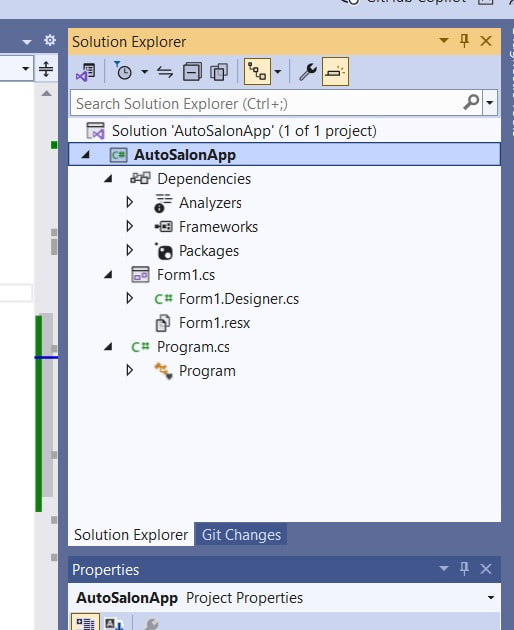
When the new project has been created, its structure can be seen in the Solution Explorer, as shown in figure 2:
First create the form in the designer so that it looks like figure 3:
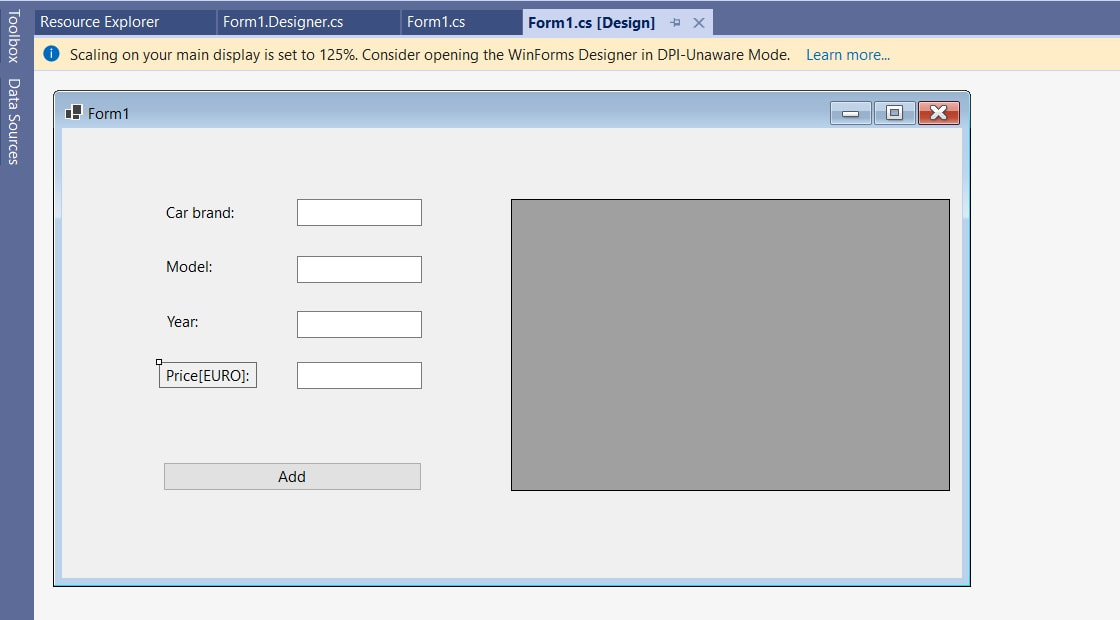
The form should have 4 Label controls with the names of the attributes, 4 TextBox controls for entering data, one button for adding, and a DataGridView control for showing the data about the cars. Before the connection to the database is created, the extra package MySql.Data needs to be installed with the NuGet Package Manager.
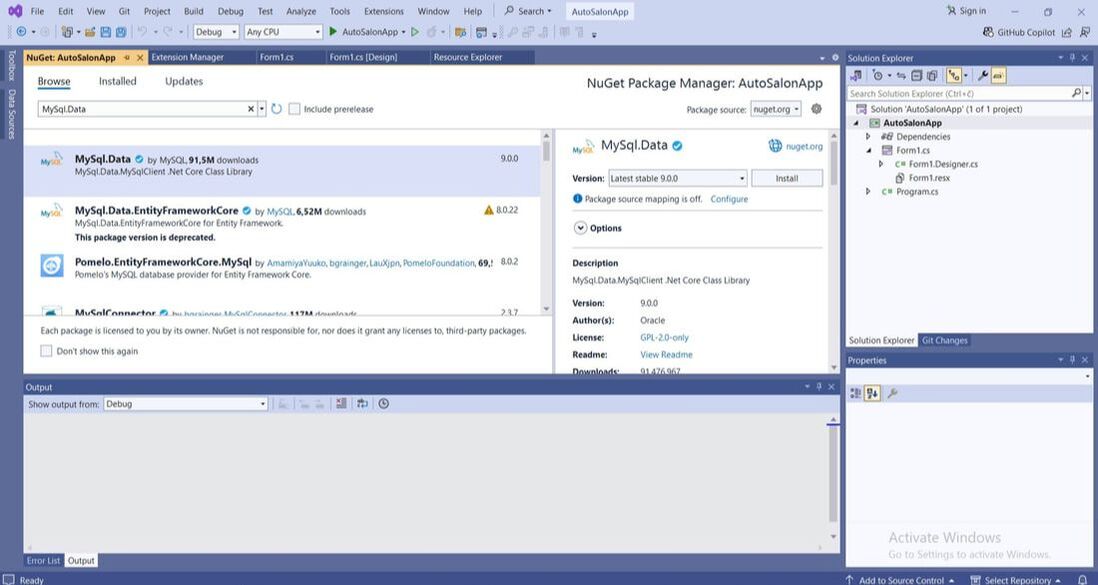
Installing the MySql.Data package
- Open the NuGet Package Manager in Visual Studio.
- Search for the MySql.Data package and install it in the project.
The process is shown in figure 4:
After installing the extra package, we will open the file Form1.cs and add the functions needed for creating the database and the table, and for getting data from the database. These methods are called in the constructor, as can be seen below (figure 5).
using MySql.Data.MySqlClient;
using System.Data.Common;
using System.Data;

namespace AutoSalonApp
{
    public partial class Form1 : Form
    {
        MySqlConnection _connection;
        public Form1()
        {
            InitializeComponent();
            CreateDatabaseAndTable();
            LoadCars();
        }
        // ... the methods LoadCars, CreateDatabaseAndTable and btnAddCar_Click are shown below
    }
}
To be able to use the classes needed for working with a MySQL database, the namespace MySql.Data.MySqlClient needs to be added at the beginning:
using MySql.Data.MySqlClient;
Inside the class you need to create an object of the MySqlConnection class (_connection).
In the constructor, after the automatically generated method InitializeComponent(), two methods should be called. The first, CreateDatabaseAndTable(), should create the database and the table if they do not exist, and the second, LoadCars(), should update the data in the DataGridView control with the current data from the database. Of course, these methods first need to be created. Figure 6 shows the method CreateDatabaseAndTable():
private void CreateDatabaseAndTable()
{
    try
    {
        // Connecting to the MySQL server without naming a database
        string connectionStringWithoutDatabase = "Server=localhost;User Id=root;Password=;";
        using (var connection = new MySqlConnection(connectionStringWithoutDatabase))
        {
            connection.Open();
            // Creating the database
            string createDatabaseQuery = "CREATE DATABASE IF NOT EXISTS CarShowroom;";
            using (var createDbCommand = new MySqlCommand(createDatabaseQuery, connection))
            {
                createDbCommand.ExecuteNonQuery();
            }
            // Setting the connection to the newly created database
            string connectionStringWithDatabase = "Server=localhost;User Id=root;Password=;Database=CarShowroom;";
            _connection = new MySqlConnection(connectionStringWithDatabase);
            _connection.Open();

            // Creating the table in the database
            string createTableQuery = @"
CREATE TABLE IF NOT EXISTS Cars (
Id INT AUTO_INCREMENT PRIMARY KEY,
CarBrand VARCHAR(50),
Model VARCHAR(50),
Year INT,
Price DECIMAL(10, 2)
);";
            using (var createTableCommand = new MySqlCommand(createTableQuery, _connection))
            {
                createTableCommand.ExecuteNonQuery();
            }
        }
    }
    catch (Exception ex)
    {
        MessageBox.Show("Error creating the database or table: " + ex.Message);
    }
}
First a connection string is created, which is then used to create the connection. The "using" statement makes sure that the resources are released when the block of statements inside it ends.
The database is not named in the connection string, because at that moment it does not exist yet.
First a connection to the MySQL server is made without naming a database (connectionStringWithoutDatabase). This connection is used only for creating the database.
Creating the database:
The CarShowroom database is created with the SQL statement CREATE DATABASE IF NOT EXISTS.
After the database is created, a new connection string that includes the database is used for creating the table and for other operations.
Opening a new connection: Finally, a new connection to the CarShowroom database is opened and assigned to the class member _connection, which will be used for further actions.
Notice here that the special character '@' was used for writing the SQL query that creates the table (createTableQuery).
In C#, the @ sign in front of a string marks a verbatim string literal. A verbatim string literal lets you write a string exactly as it is typed, without needing special characters such as \ for new lines, tabs or other escape sequences.
In this example, @ lets the SQL query be written in a readable and clear way, split over several lines, which makes it easier to understand and maintain.
The method LoadCars() is shown in figure 7:
private void LoadCars()
{
    string query = "SELECT * FROM Cars";

    try
    {
        // Check whether the connection is open
        if (_connection.State != ConnectionState.Open)
        {
            _connection.Open();
        }

        using (MySqlCommand command = new MySqlCommand(query, _connection))
        {
            using (MySqlDataAdapter adapter = new MySqlDataAdapter(command))
            {
                DataTable dataTable = new DataTable();
                adapter.Fill(dataTable);
                dataGridView1.DataSource = dataTable;
            }
        }
    }
    catch (Exception ex)
    {
        MessageBox.Show("Error loading data: " + ex.Message);
    }
}
This LoadCars method is designed to load the data about cars from the Cars table in the MySQL database and show it in the DataGridView control on the Windows form.
First a MySQL query is created:
string query = "SELECT * FROM Cars";
This query selects all the columns and rows from the Cars table.
Next, the state of the connection is checked:
if (_connection.State != ConnectionState.Open)
{
    _connection.Open();
}
It checks whether the connection to the database (_connection) is open. If it is not, it is opened. This makes sure that the connection to the database is established before the SQL query is run.
Then a MySqlCommand object is created, which contains the SQL query (query) and uses the open connection (_connection) to run that query.
After that an object of the MySqlDataAdapter class is created for filling the DataTable.
The MySqlDataAdapter uses the command to run the query and fill the DataTable with the results of the query. Then the DataTable is set as the data source for the DataGridView control (dataGridView1), which shows the data on the form.
This code is placed in a try-catch block that catches an exception in case of an error. If any error happens during the process (e.g. a problem with the connection or with running the query), the error is caught and shown to the user in a MessageBox.
The button click event
When the Add button is clicked, the method btnAddCar_Click(object sender, EventArgs e) is called.
The method is shown in figure 8:
private void btnAddCar_Click(object sender, EventArgs e)
{
    string brand = txtCarBrand.Text;
    string model = txtModel.Text;
    int year = int.Parse(txtYear.Text);
    decimal price = decimal.Parse(txtPrice.Text);

    string insertQuery = "INSERT INTO Cars (CarBrand, Model, Year, Price) VALUES (@CarBrand, @Model, @Year, @Price)";
    using (var insertCommand = new MySqlCommand(insertQuery, _connection))
    {
        insertCommand.Parameters.AddWithValue("@CarBrand", brand);
        insertCommand.Parameters.AddWithValue("@Model", model);
        insertCommand.Parameters.AddWithValue("@Year", year);
        insertCommand.Parameters.AddWithValue("@Price", price);

        try
        {
            insertCommand.ExecuteNonQuery();
            MessageBox.Show("Car added successfully!");
            LoadCars(); // Refresh the view after adding
        }
        catch (Exception ex)
        {
            MessageBox.Show("Error adding the car: " + ex.Message);
        }
    }
}
This btnAddCar_Click method runs when the user clicks the button for adding a new car to the database. In the first part:
string brand = txtCarBrand.Text;
string model = txtModel.Text;
int year = int.Parse(txtYear.Text);
decimal price = decimal.Parse(txtPrice.Text);
These lines of code collect the values the user entered into the text fields (txtCarBrand, txtModel, txtYear, txtPrice) on the form and store them in the matching variables.
Year is converted from text into a number of type int, while price is converted into a decimal number.
Next the query is created:
string insertQuery = "INSERT INTO Cars (CarBrand, Model, Year, Price) VALUES (@CarBrand, @Model, @Year, @Price)";
This line creates an SQL query for inserting a new row into the Cars table. The query uses parameters (@CarBrand, @Model, @Year, @Price) instead of inserting the values directly, which helps avoid SQL injection and gives better control over the values.
Creating and setting up the MySqlCommand:
This block of code creates a MySqlCommand object that contains the SQL query (insertQuery) and uses the open connection (_connection) to run that query.
Then the query parameters and their values (@CarBrand, @Model, @Year, @Price) are added, where each value matches the one collected from the text fields on the form.
Running the query and catching errors:
ExecuteNonQuery is used to run a query that does not return results (such as INSERT). If the query runs successfully, the user is shown the message "Car added successfully!".
After inserting, the LoadCars method is called to refresh the data in the DataGridView, adding the new car to the table.
If an error happens while inserting, the exception is caught and a message describing the error is shown to the user.
Running the application
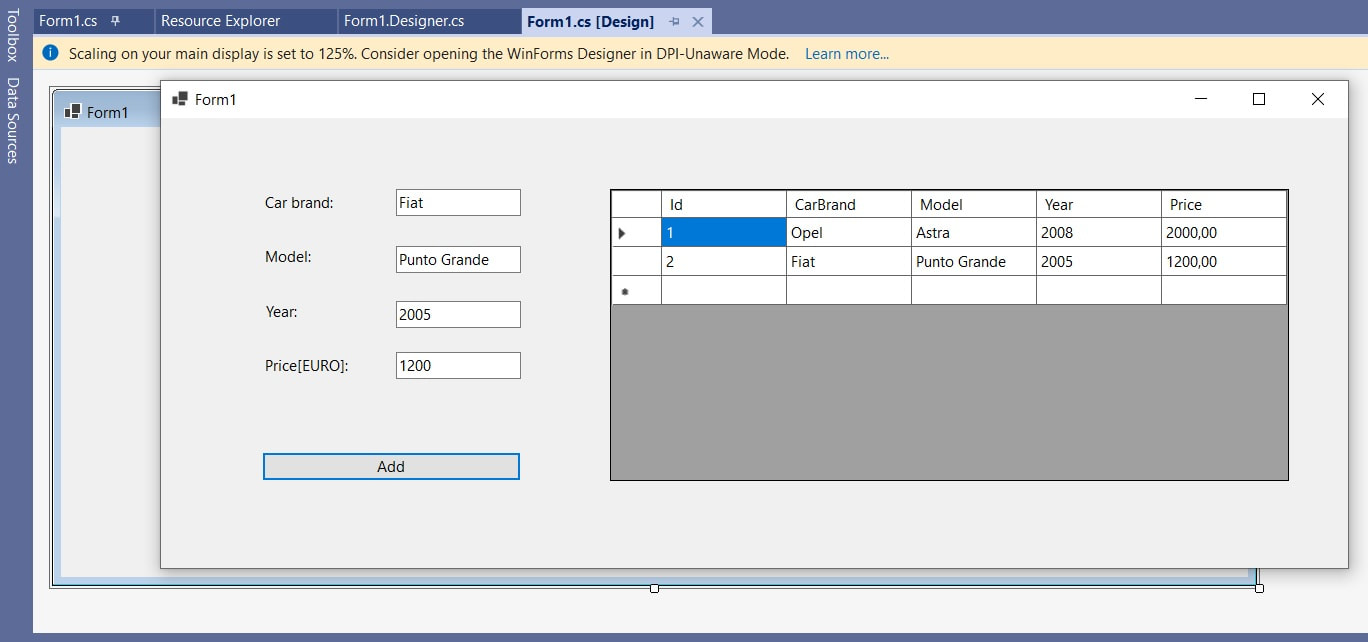
After running the application and entering some data into the database, the following form will be shown:
Check your knowledge
Open the quiz
Windows Forms and MySQL
1. Which package connects a C# application to a MySQL database?
2. What does a connection string contain?
3. Which SQL statement adds a new row to a table?
4. In which event does code run when the user clicks a button?