
A Windows Forms application with an SQLite database
This article shows how to create a simple application that connects to an SQLite database. It consists of a Windows form used to enter a user's first and last name, which are added to the database, and the form can also show the data that has been entered.
Let us now create a new project called UserManagementApp.
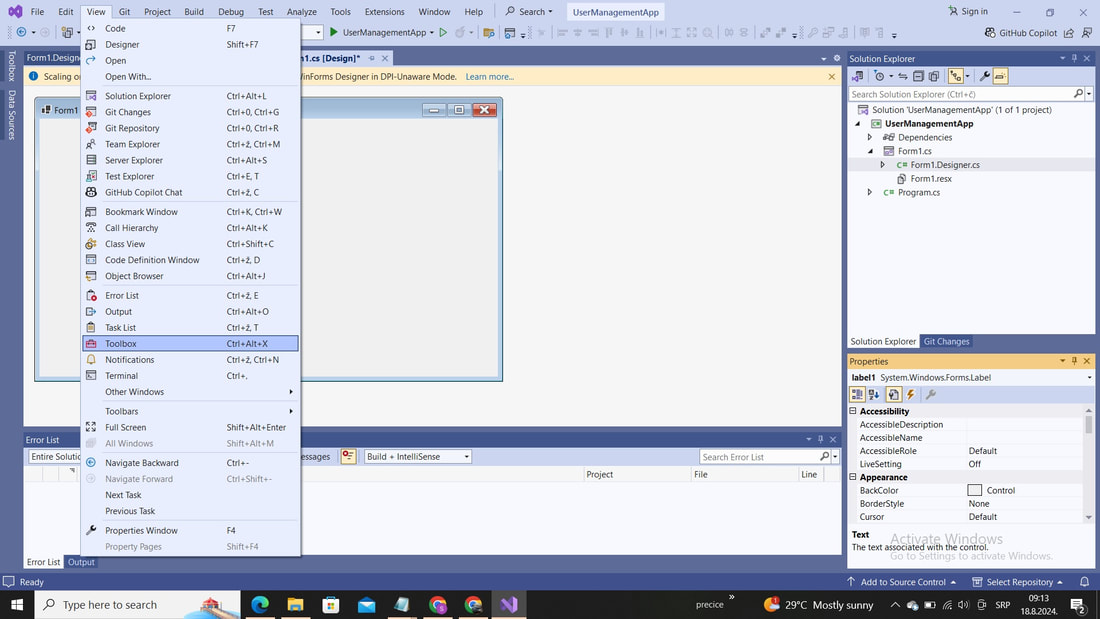
Start Visual Studio 2022 Community and click the button for creating a new project. After the new project is created, the files can be seen in the Solution Explorer, shown on the right in figure 1. Open the designer for creating the form by clicking the file Form1.Designer.cs, and then add the Toolbox panel for adding controls (see figure 1).
Adding controls to the form
When the Toolbox is open, you will see a list of different controls such as Button, Label, TextBox, DataGridView and others.
- Step 1: Click the control you want to add (e.g. Button).
- Step 2: Drag it onto your form (the design window) and release the mouse button to place it where you want.
- Step 3: You can click the control to select it and adjust its properties in the Properties panel (usually on the right).
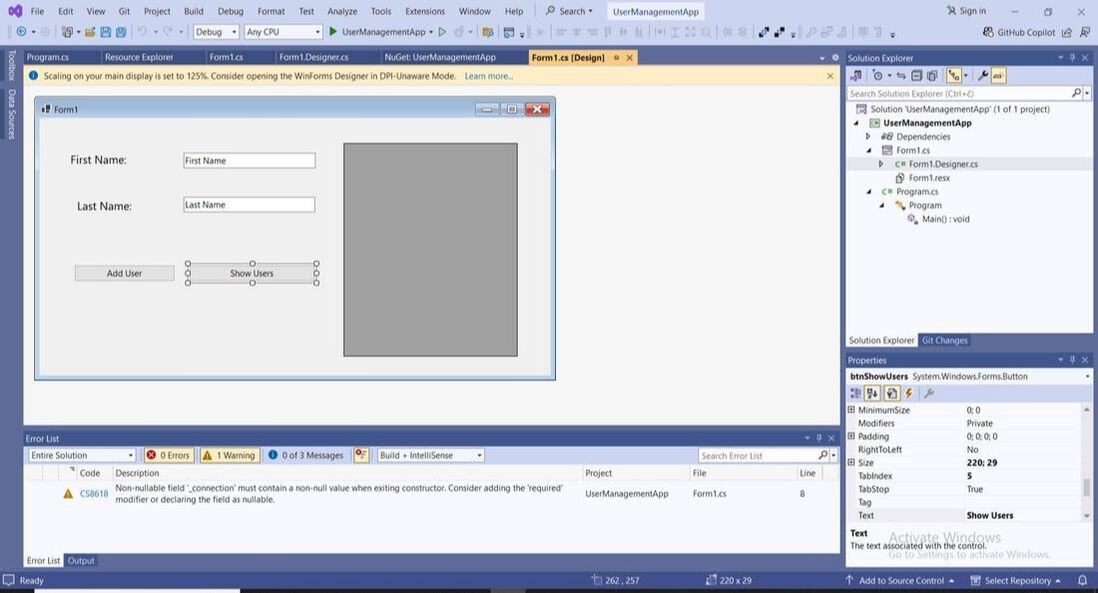
We will add the following controls to the form:
- 2 TextBox controls for entering the first and last name.
- 2 Label controls for labelling the TextBoxes (First Name and Last Name).
- 1 Button control for adding a user.
- 1 Button control for showing the users.
- 1 DataGridView control for showing the data from the database.
Then the properties of the controls need to be set:
- TextBox for the first name: Name = txtFirstName
- TextBox for the last name: Name = txtLastName
- Button for adding a user: Name = btnAddUser, Text = "Add User"
- Button for showing the users: Name = btnShowUsers, Text = "Show Users"
- DataGridView: Name = dataGridView1
The form should look like figure 2:
For the form to work, we need to generate two methods that will be called by clicking one or the other button, and an SQLite database. The methods are easy to create by double-clicking the buttons in the designer, while for creating the connection to the database an extra package, System.Data.SQLite or Microsoft.Data.Sqlite.Core, needs to be installed.
- Microsoft.Data.Sqlite.Core is part of Microsoft's ecosystem and is often used with .NET Core or .NET 5/6 projects. It has a more modern API and integrates better with the newest versions of .NET.
- System.Data.SQLite is an older package, well tested and often used with .NET Framework applications. If an older version of .NET is used (e.g. .NET Framework), it can be a better choice.
Find the package by right-clicking the project in the Solution Explorer and choosing Manage NuGet Packages. Then type the name of the package in the search box and install it (see figure 3).
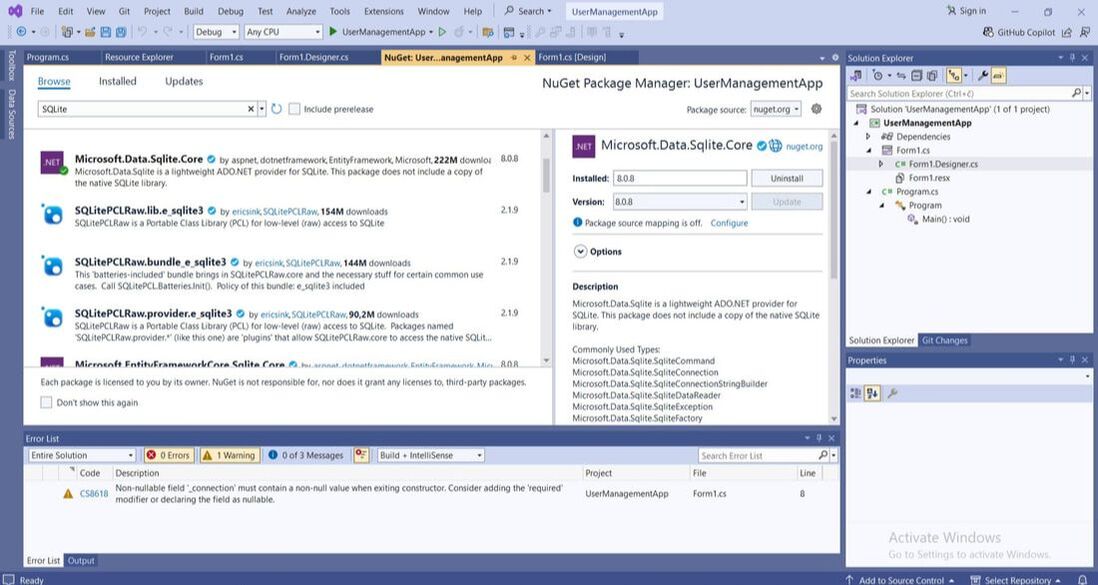
You need to call SQLitePCL.raw.SetProvider() when it opens the database. So install the SQLitePCLRaw.bundle_e_sqlite3 package together with it, or instead of both install the Microsoft.Data.Sqlite package, which contains everything needed.Creating a connection to the SQLite database
Open the file Form1.cs and in the Form1 class add the object _connection of the SqliteConnection class from the Microsoft.Data.Sqlite namespace.
We will initialise the database in a separate method, InitializeDatabase(), which should be called from the constructor of the Form1 class, as can be seen in figure 4. Note that this namespace must be included with the using directive.
In the InitializeDatabase() method an object of the SqliteConnection class is created, and its constructor is given as a parameter the connection string created beforehand like this:
string connectionString = "DataSource=user.db";
Then the connection is opened by calling the Open() method of the _connection object. Inside the method for initialising the database, a query is created next that will create the Users table in the database if it has not been created before:
string createTableQuery = "CREATE TABLE IF NOT EXISTS Users(Id INTEGER PRIMARY KEY AUTOINCREMENT, FirstName TEXT, LastName TEXT)";
Id will be the primary key, auto-incremented, together with the fields for the first and last name.
Using this query, and the connection object as a parameter, a SqliteCommand object is created:
SqliteCommand command = new SqliteCommand(createTableQuery, _connection);
ExecuteNonQuery is a method called on the created command object, used in C# to run SQL commands that do not return results like a SELECT query. This method is most often used for SQL operations such as INSERT, UPDATE, DELETE and CREATE TABLE.
ExecuteNonQuery runs the SQL command it is given, but does not return any results in the form of data (i.e. it does not return rows or values from the database).
This method returns an int value that tells how many rows in the database were affected (changed, added or deleted) by the given SQL command. For example, if an UPDATE command that changes 5 rows in the database is run, ExecuteNonQuery will return 5.
private SqliteConnection _connection;

public Form1()
{
    InitializeComponent();
    InitializeDatabase();
}

private void InitializeDatabase()
{
    string connectionString = "DataSource=user.db";
    _connection = new SqliteConnection(connectionString); // creating the connection
    _connection.Open(); // opening the connection

    string createTableQuery = "CREATE TABLE IF NOT EXISTS Users(Id INTEGER PRIMARY KEY AUTOINCREMENT, FirstName TEXT, LastName TEXT)";
    SqliteCommand command = new SqliteCommand(createTableQuery, _connection);
    command.ExecuteNonQuery();
}
Adding button events
The handler for the first button is the btnAddUser_Click method, which is called when the btnAddUser button, used to trigger entering the data from the form into the database, is clicked. First the values from the Text fields on the form need to be read and stored in string variables, as shown below (figure 5).
private void btnAddUser_Click(object sender, EventArgs e)
{
    string firstName = txtFirstName.Text;
    string lastName = txtLastName.Text;
    string insertQuery = "INSERT INTO Users(FirstName,LastName) VALUES(@FirstName,@LastName)";
    SqliteCommand insertCommand = new SqliteCommand(insertQuery, _connection);
    insertCommand.Parameters.AddWithValue("@FirstName", firstName);
    insertCommand.Parameters.AddWithValue("@LastName", lastName);
    insertCommand.ExecuteNonQuery();
    MessageBox.Show("User added successfully!");
}
In the original picture the query said INSERT INTO User(…), but the table is called Users – this has been corrected, as in the text below.
After setting the string variables for the first and last name, firstName and lastName, a query for inserting the data into the Users table is prepared:
string insertQuery = "INSERT INTO Users(FirstName,LastName) VALUES(@FirstName,@LastName)";
@FirstName and @LastName are parameters used in the SQL command for working with data in the database. These parameters make it possible to insert values into SQL queries safely and flexibly. This is how they work:
What are @FirstName and @LastName?
- Parameters in SQL queries: @FirstName and @LastName are markers for parameters used in the SQL query. Instead of inserting values directly into the SQL string (which can be risky because of SQL injection), parameters are used so that the values are interpreted correctly and the application is more secure.
- Here @FirstName and @LastName are placeholders for which concrete values will be set later.
Next, using the prepared query, the command for inserting data into the database, insertCommand of the class SqliteCommand, is created.
Then the parameters are added and the query is run.
Showing data in the dataGridView1 control
Showing data in the dataGridView1 control is done in the handler for the second button, i.e. in the method btnShowUsers_Click(object sender, EventArgs e), see figure 6.
private void btnShowUsers_Click(object sender, EventArgs e)
{
    string selectQuery = "SELECT * FROM Users";
    using (var command = new SqliteCommand(selectQuery, _connection))
    {
        using (var reader = command.ExecuteReader())
        {
            DataTable dataTable = new DataTable();
            // fill the DataTable using the DataReader
            dataTable.Load(reader);
            dataGridView1.DataSource = dataTable; // sets dataTable as the data source for the dataGridView1 control
        }
    }
}
First an SQL query for taking the data from the database, i.e. from the Users table, is prepared:
string selectQuery = "SELECT * FROM Users";
Then objects of the SqliteCommand and SqliteDataReader classes, i.e. the command and reader objects, are created in turn. The reader object is used as the data source for the dataTable object of the DataTable class.
Using the using statement
The using statement in C# is used for managing resources and makes sure that objects that implement the IDisposable interface are released properly when they are no longer used. This is especially important for resources such as database connections, files and other objects that require resources to be released explicitly.
It releases resources automatically when an object is no longer used. When the using block ends, the object's Dispose method is called automatically, which releases all the resources the object uses.
This statement is highly recommended when working with objects such as SqliteConnection, SqliteCommand and SqliteDataReader. These objects use system resources that should be released when you have finished using them. If using is not used, the Dispose method would have to be called by hand, which can be forgotten and can lead to resource leaks.
Running the program
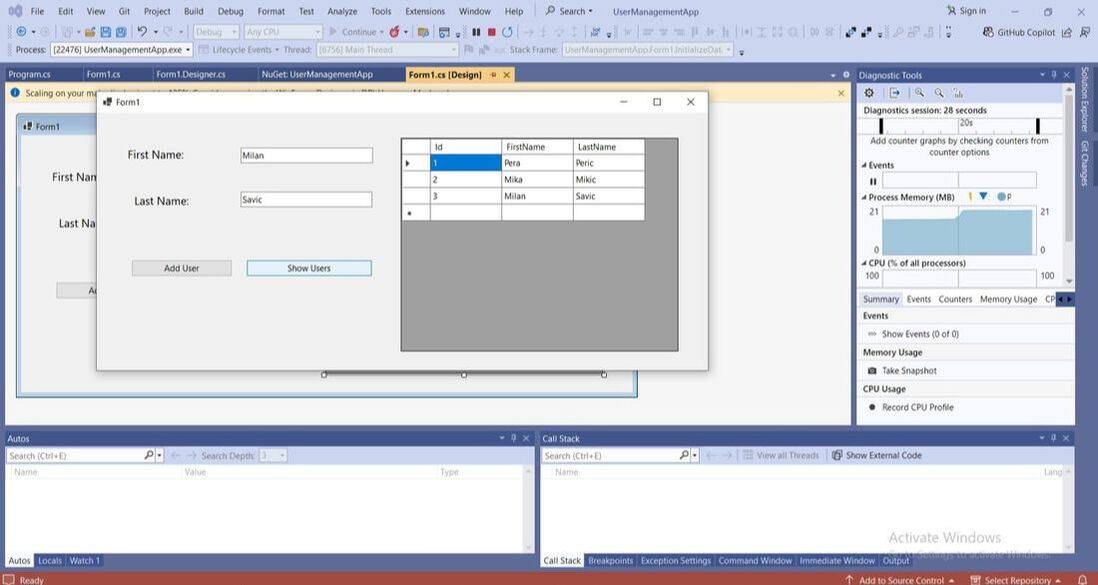
After running and testing the application we will see:
Check your knowledge
Open the quiz
Windows Forms and SQLite
1. Which NuGet package is needed for working with the SQLite database in this example?
2. Which control shows data from the database as a table?
3. Why are the command and the reader created in a using block?
4. What does the parameter @FirstName in the SQL query mean?