
Windows Forms and a SQL Server database – a car showroom example
This article describes the same example as the previous article, "Car Showroom", but now using a SQL Server database. To develop a C# application that communicates with a SQL Server database, you need the following tools and resources:
- A development environment (IDE):
- Visual Studio: This is the most commonly used environment for developing C# applications. There is a free version called Visual Studio Community that is suitable for individual programmers, open-source projects and small teams.
- .NET Framework or .NET Core:
- To use C#, you need to have .NET Framework or .NET Core installed. .NET Core is a modern platform for developing cross-platform applications, while .NET Framework is the more traditional version.
- SQL Server:
- SQL Server (Express Edition): This is a free version of SQL Server that can be used for development and small applications. You can also use a local SQL Server instance or SQL Server Management Studio (SSMS) to manage databases.
- ADO.NET or Entity Framework:
- ADO.NET: This tool allows direct communication between the application and SQL Server through SQL queries.
- Entity Framework: This is an ORM (Object-Relational Mapper) tool that simplifies working with databases, letting you work with data through C# objects instead of direct SQL queries.
- SQL Server Management Studio (SSMS):
- This tool is used to manage SQL Server databases; it lets you run SQL queries, create and edit tables, and administer the server.
- The connection string:
- To connect to a SQL Server database, you need to configure a connection string in your application that contains information such as the server name, the database name, the user name and the password.
Connecting to SQL Server from a C# Windows Forms application
Here is a simple example of how to connect to SQL Server from a C# application using ADO.NET:
using System;
using System.Data.SqlClient;

class Program
{
    static void Main()
    {
        string connectionString = "Server=your_server_name;Database=your_database_name;User Id=your_username;Password=your_password;";

        using (SqlConnection connection = new SqlConnection(connectionString))
        {
            connection.Open();
            Console.WriteLine("Connected to the database successfully!");

            // You can add SQL queries and operations here
        }
    }
}
Resources needed to create the application
Resources:
With these tools and resources you will be ready to develop C# applications that communicate with a SQL Server database.
Checking whether ADO.NET or Entity Framework is already installed
To check whether ADO.NET or Entity Framework is installed in Visual Studio 2019 Community, you can follow these steps:
Checking ADO.NET. ADO.NET is part of the .NET Framework, so it should be included automatically when Visual Studio is installed. To check whether ADO.NET is available:
- Open Visual Studio.
- Create a new project or open an existing one.
- In the "Solution Explorer", right-click the project and choose "Add" > "New Item...".
- In the window that opens, choose "Class" and add a new class.
- In the class, try to add using System.Data.SqlClient;. If you do not get an error, ADO.NET is available.
Checking Entity Framework. Entity Framework is not installed automatically with Visual Studio, but it can be added through a NuGet package. To check whether Entity Framework is already installed:
- Open Visual Studio.
- Open your project.
- In the "Solution Explorer", right-click the project and choose "Manage NuGet Packages...".
- In the window that opens, go to the "Installed" tab.
- Check whether Entity Framework or Entity Framework Core is in the list of installed packages.
Installing Entity Framework. If Entity Framework is not installed, you can add it like this:
- In the "Manage NuGet Packages..." window, go to the "Browse" tab.
- In the search box type "Entity Framework" or "Entity Framework Core".
- Choose the package you want and click "Install".
Useful resources
Checking the SQL Server installation
To check whether SQL Server is installed:
- Open the "Control Panel" in Windows.
- Go to Programs and Features.
- Look for Microsoft SQL Server in the list of installed programs.
Installing SQL Server and SSMS
If SQL Server is not installed, you can download it:
An example "Car Showroom" application using SQL Server instead of MySQL.
In this example we will use a Windows Forms application in C# that lets you enter data about cars into a SQL Server database and shows that data in a DataGridView control.
Creating the SQL Server database and table
First, create a SQL Server database and a table for the cars. You can use the following SQL query in SQL Server Management Studio (SSMS):
CREATE DATABASE AutoSalon;
GO

USE AutoSalon;
GO

CREATE TABLE Cars(
    Id INT IDENTITY(1,1) PRIMARY KEY,
    CarBrand NVARCHAR(50),
    Model NVARCHAR(50),
    Year INT,
    Price DECIMAL(10, 2)
);
Creating a new Windows Forms application
Creating a new Windows Forms application
- Open Visual Studio and create a new project called AutoSalonApp.
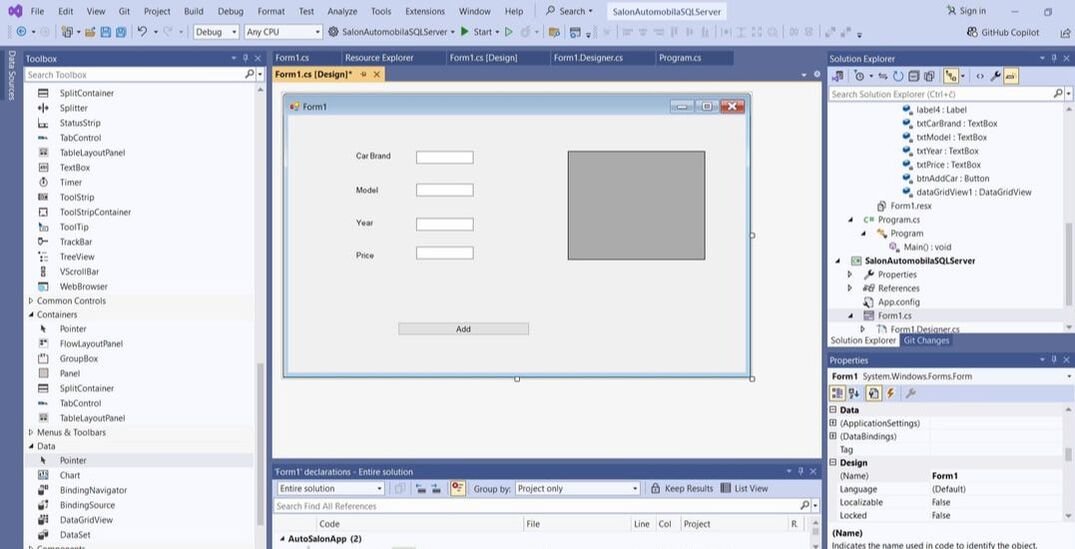
- On the form, place:
- 4 Label controls for the names of the attributes: Car Brand, Model, Year, Price.
- 4 TextBox controls for entering data (txtCarBrand, txtModel, txtYear, txtPrice).
- A button for adding (btnAddCar).
- A DataGridView control for showing the data (dataGridView1).
Installing the NuGet package
To communicate with SQL Server, install the System.Data.SqlClient package:
- Open the NuGet Package Manager in Visual Studio.
- Search for and install System.Data.SqlClient.
using Microsoft.Data.SqlClient; at the top of the file.Let us see in the following picture how this form should look:
The code for Form1.cs
using System;
using System.Data;
using System.Data.SqlClient;
using System.Windows.Forms;

namespace AutoSalonApp
{
    public partial class Form1 : Form
    {
        private SqlConnection _connection;

        public Form1()
        {
            InitializeComponent();
            CreateDatabaseAndTable();
            LoadCars();
        }

        private void CreateDatabaseAndTable()
        {
            string connectionString = @"Server=YOUR_SERVER_NAME;Integrated Security=true;";
            using (SqlConnection connection = new SqlConnection(connectionString))
            {
                connection.Open();

                SqlCommand command = new SqlCommand("IF NOT EXISTS (SELECT * FROM sys.databases WHERE name = 'AutoSalon') CREATE DATABASE AutoSalon;", connection);
                command.ExecuteNonQuery();

                connection.ChangeDatabase("AutoSalon");

                command = new SqlCommand(@"IF NOT EXISTS (SELECT * FROM sys.tables WHERE name = 'Cars')
CREATE TABLE Cars (
Id INT IDENTITY(1,1) PRIMARY KEY,
CarBrand NVARCHAR(50),
Model NVARCHAR(50),
Year INT,
Price DECIMAL(10, 2)
);",
                    connection);
                command.ExecuteNonQuery();
            }

            // the connection to the AutoSalon database used by LoadCars and btnAddCar_Click
            _connection = new SqlConnection(@"Server=YOUR_SERVER_NAME;Database=AutoSalon;Integrated Security=true;");
            _connection.Open();
        }

        private void LoadCars()
        {
            string query = "SELECT * FROM Cars";
            using (SqlDataAdapter adapter = new SqlDataAdapter(query, _connection))
            {
                DataTable carsTable = new DataTable();
                adapter.Fill(carsTable);
                dataGridView1.DataSource = carsTable;
            }
        }

        private void btnAddCar_Click(object sender, EventArgs e)
        {
            string brand = txtCarBrand.Text;
            string model = txtModel.Text;
            int year = int.Parse(txtYear.Text);
            decimal price = decimal.Parse(txtPrice.Text);

            string insertQuery = "INSERT INTO Cars (CarBrand, Model, Year, Price) VALUES (@CarBrand, @Model, @Year, @Price)";
            using (SqlCommand command = new SqlCommand(insertQuery, _connection))
            {
                command.Parameters.AddWithValue("@CarBrand", brand);
                command.Parameters.AddWithValue("@Model", model);
                command.Parameters.AddWithValue("@Year", year);
                command.Parameters.AddWithValue("@Price", price);

                command.ExecuteNonQuery();
                MessageBox.Show("Car added successfully!");
                LoadCars(); // Refresh the DataGridView
            }
        }
    }
}
An explanation of the code
- The connection: The connection to SQL Server is made with SqlConnection. Set YOUR_SERVER_NAME to the name of your SQL Server instance.
- Creating the database and table: The CreateDatabaseAndTable method creates the AutoSalon database and the Cars table if they do not exist, and then opens the connection to that database.
- Loading the data: The LoadCars method loads all the cars from the Cars table and shows them in the DataGridView control.
- The add button: In the btnAddCar_Click method, the data from the TextBox controls is collected and added to the Cars table. After a successful insert, a message is shown to the user.
Running the application
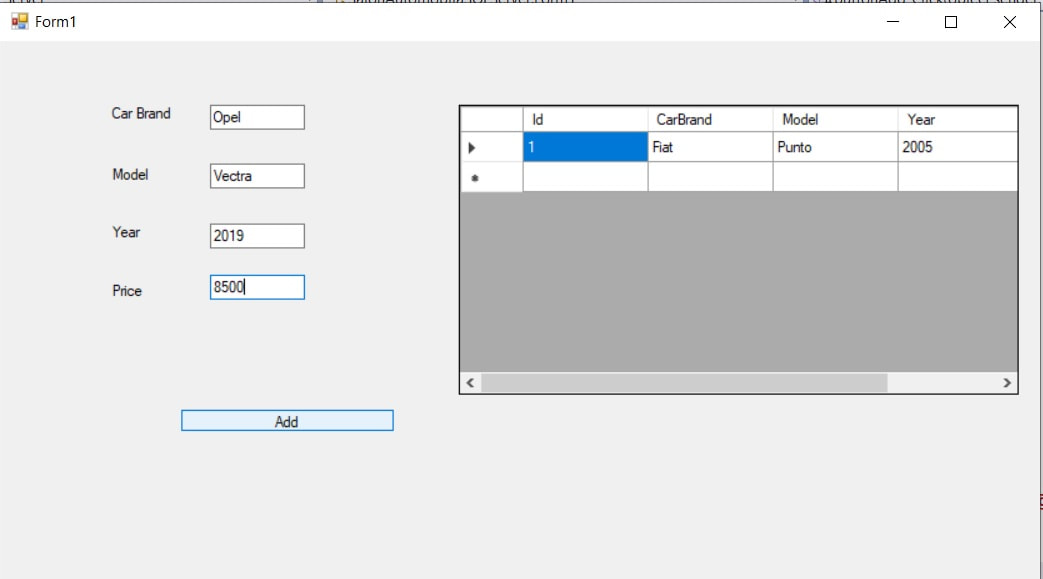
When the application is run and a few cars are added, the data will be shown in the DataGridView control.
Creating the database dynamically
The example described above assumes that the database has been created, e.g. with SQL Server Management Studio (SSMS). However, if we wanted the database to be created dynamically, i.e. entirely by the application, we would do it like this. To create the CarShowroom database dynamically in C#, you can use SqlConnection to connect to SQL Server without naming a database. After that, you can run an SQL query that creates the database. This is how it could look:
- Define a connection string without a database name. This lets you connect to the server and run the command that creates the database.
- Use an SQL query to create the database. If the database does not exist, run the query that creates it.
Here is an example of the code:
using System;
using System.Data;
using System.Data.SqlClient;

namespace CarShowroomApp
{
    class Program
    {
        static void Main(string[] args)
        {
            // A connection string without a database name
            string connectionStringWithoutDatabase = @"Server=YOUR_SERVER_NAME;Integrated Security=true;";

            using (SqlConnection connection = new SqlConnection(connectionStringWithoutDatabase))
            {
                try
                {
                    connection.Open();

                    // An SQL query that creates the database if it does not exist
                    string createDatabaseQuery = "IF NOT EXISTS (SELECT name FROM sys.databases WHERE name = 'CarShowroom') " +
                        "BEGIN " +
                        "CREATE DATABASE CarShowroom; " +
                        "END";

                    SqlCommand command = new SqlCommand(createDatabaseQuery, connection);
                    command.ExecuteNonQuery();

                    // Change the connection string so that it includes the new database
                    string connectionStringWithDatabase = @"Server=YOUR_SERVER_NAME;Database=CarShowroom;Integrated Security=true;";

                    // Now connectionStringWithDatabase can be used for further operations
                }
                catch (Exception ex)
                {
                    Console.WriteLine("An error occurred: " + ex.Message);
                }
            }
        }
    }
}
Explanation:
- A connection string without a database name: This example uses a connection string that does not name a database, which lets you connect to SQL Server.
- An SQL query for creating the database: The query checks whether the CarShowroom database already exists, and if it does not, it creates it.
- Changing the connection string: After the database is created, the connection string can be changed to include the name of the new database, which allows further work with it.
The complete application
This code shows how to use a Windows Forms application together with a SQL Server database to manage data about cars. The application lets you create the database and the table, and add new cars through a GUI form. After running it and inserting data into the database, the form should look like the following picture:
Below is an improved version of the complete application, with an explanation of the code. The code shows the namespaces that are used, the declaration of the connection and the constructor.
using System;
using System.Collections.Generic;
using System.ComponentModel;
using System.Data;
using System.Data.Common;
using System.Data.SqlClient;
using System.Drawing;
using System.Linq;
using System.Text;
using System.Threading.Tasks;
using System.Windows.Forms;

namespace CarShowroomSqlServer
{
    public partial class Form1 : Form
    {
        private SqlConnection _connection;

        public Form1()
        {
            InitializeComponent();
            InitializeConnection();
            CreateDatabaseAndTable();
            LoadCars();
        }

        private void InitializeConnection()
        {
            _connection = new SqlConnection(@"Server=.\SQLEXPRESS;Database=CarShowroom;User Id=sa;Password=sapassword;");
            _connection.Open();
        }

        private void LoadCars()
        {
            if (_connection == null || _connection.State == ConnectionState.Closed)
            {
                _connection = new SqlConnection(@"Server=.\SQLEXPRESS;Database=CarShowroom;User Id=sa;Password=sapassword;");
                _connection.Open();
            }
            string query = "SELECT * FROM Cars";
            using (SqlDataAdapter adapter = new SqlDataAdapter(query, _connection))
            {
                DataTable carsTable = new DataTable();
                adapter.Fill(carsTable);
                dataGridView1.DataSource = carsTable;
            }
        }

        private void CreateDatabaseAndTable()
        {
            try
            {
                // Creating the database
                // Check whether the database exists; if it does not, create it
                string createDatabaseQuery = @"IF NOT EXISTS (SELECT name FROM sys.databases WHERE name = 'CarShowroom')
BEGIN
CREATE DATABASE CarShowroom;
END";

                SqlCommand createDbCommand = new SqlCommand(createDatabaseQuery, _connection);
                createDbCommand.ExecuteNonQuery();
                // Switching the connection to the newly created database
                _connection.ChangeDatabase("CarShowroom");
                createDbCommand = new SqlCommand(@"IF NOT EXISTS (SELECT * FROM sys.tables WHERE name = 'Cars')
CREATE TABLE Cars (
Id INT IDENTITY(1,1) PRIMARY KEY,
CarBrand NVARCHAR(50),
Model NVARCHAR(50),
Year INT,
Price DECIMAL(10, 2)
);",
                    _connection);
                createDbCommand.ExecuteNonQuery();
            }
            catch (SqlException ex)
            {
                MessageBox.Show("Error creating the database or table: " + ex.Message);
            }
        }

        private void buttonAdd_Click(object sender, EventArgs e)
        {
            string brand = textBoxBrand.Text;
            string model = textBoxModel.Text;
            if (!int.TryParse(textBoxYear.Text, out int year))
            {
                MessageBox.Show("Enter a valid year.");
                return;
            }
            if (!decimal.TryParse(textBoxPrice.Text, out decimal price))
            {
                MessageBox.Show("Enter a valid price.");
                return;
            }
            string insertQuery = "INSERT INTO Cars (CarBrand, Model, Year, Price) VALUES (@CarBrand, @Model, @Year, @Price)";
            using (var insertCommand = new SqlCommand(insertQuery, _connection))
            {
                insertCommand.Parameters.AddWithValue("@CarBrand", brand);
                insertCommand.Parameters.AddWithValue("@Model", model);
                insertCommand.Parameters.AddWithValue("@Year", year);
                insertCommand.Parameters.AddWithValue("@Price", price);
                try
                {
                    insertCommand.ExecuteNonQuery();
                    MessageBox.Show("Car added successfully!");
                    LoadCars(); // Refresh the view after adding
                }
                catch (Exception ex)
                {
                    MessageBox.Show("Error adding the car: " + ex.Message);
                }
            }
        }
    }
}
This is the whole Form1.cs file. Each method is explained below. Watch out: InitializeConnection connects to the CarShowroom database, so the first time you run it, while the database does not exist yet, leave Database=CarShowroom; out of the connection string – the database will be created by CreateDatabaseAndTable (as in the section "Creating the database dynamically").
The first method called after the automatically generated InitializeComponent is InitializeConnection, which creates and opens the connection to the database.
The same code also shows the LoadCars() method, which loads the data about cars from the database. The method called after the connection is opened is CreateDatabaseAndTable(), which creates the database if it has not been created yet, and then creates the table for storing the data about cars, also only if it has not been created yet.
When the button is clicked, the method buttonAdd_Click() is called, which takes the data from the form and inserts it into the database.
An explanation of the code of the Windows Forms application for managing a database of cars
1. Libraries and namespaces
using System;
using System.Data;
using System.Data.SqlClient;
using System.Windows.Forms;
These libraries make it possible to use basic .NET features, SQL connections, data handling and creating a graphical user interface (GUI) with Windows Forms.
2. The Form1 class and a private variable
public partial class Form1 : Form
{
    private SqlConnection _connection;
The Form1 class inherits Form, which lets this class represent a Windows Forms window. The private variable _connection holds the SQL connection to the SQL Server database.
3. The class constructor
public Form1()
{
    InitializeComponent();
    InitializeConnection();
    CreateDatabaseAndTable();
    LoadCars();
}
The constructor calls three methods:
- InitializeConnection(): opens the connection to the SQL Server database.
- CreateDatabaseAndTable(): creates the database and the table if they do not exist.
- LoadCars(): loads the data about cars from the table and shows it in the DataGridView control.
4. The InitializeConnection() method
private void InitializeConnection()
{
    _connection = new SqlConnection(@"Server=.\SQLEXPRESS;Database=CarShowroom;User Id=sa;Password=sapassword;");
    _connection.Open();
}
This method initialises the SQL connection using a SQL Server Express instance and opens it. The parameters in SqlConnection specify the server, the database, the user name and the password.
5. The LoadCars() method
private void LoadCars()
{
    if (_connection == null || _connection.State == ConnectionState.Closed)
    {
        _connection = new SqlConnection(@"Server=.\SQLEXPRESS;Database=CarShowroom;User Id=sa;Password=sapassword;");
        _connection.Open();
    }
    string query = "SELECT * FROM Cars";
    using (SqlDataAdapter adapter = new SqlDataAdapter(query, _connection))
    {
        DataTable carsTable = new DataTable();
        adapter.Fill(carsTable);
        dataGridView1.DataSource = carsTable;
    }
}
This method checks the state of the connection and opens it if it is closed. Then it uses the SQL query "SELECT * FROM Cars" to get all the data from the Cars table and uses a SqlDataAdapter to fill a DataTable object, which is set as the data source for the DataGridView control.
6. The CreateDatabaseAndTable() method
private void CreateDatabaseAndTable()
{
    try
    {
        string createDatabaseQuery = @"IF NOT EXISTS (SELECT name FROM sys.databases WHERE name = 'CarShowroom')
BEGIN
CREATE DATABASE CarShowroom;
END";

        SqlCommand createDbCommand = new SqlCommand(createDatabaseQuery, _connection);
        createDbCommand.ExecuteNonQuery();

        _connection.ChangeDatabase("CarShowroom");

        createDbCommand = new SqlCommand(@"IF NOT EXISTS (SELECT * FROM sys.tables WHERE name = 'Cars')
CREATE TABLE Cars (
Id INT IDENTITY(1,1) PRIMARY KEY,
CarBrand NVARCHAR(50),
Model NVARCHAR(50),
Year INT,
Price DECIMAL(10, 2)
);",
            _connection);
        createDbCommand.ExecuteNonQuery();
    }
    catch (SqlException ex)
    {
        MessageBox.Show("Error creating the database or table: " + ex.Message);
    }
}
The method first creates the CarShowroom database if it does not exist, using an SQL query with IF NOT EXISTS. After that, it switches the connection to the new database and creates the Cars table with the columns Id, CarBrand, Model, Year and Price, if it does not exist.
7. The buttonAdd_Click() method
private void buttonAdd_Click(object sender, EventArgs e)
{
    string brand = textBoxBrand.Text;
    string model = textBoxModel.Text;

    if (!int.TryParse(textBoxYear.Text, out int year))
    {
        MessageBox.Show("Enter a valid year.");
        return;
    }
    if (!decimal.TryParse(textBoxPrice.Text, out decimal price))
    {
        MessageBox.Show("Enter a valid price.");
        return;
    }

    string insertQuery = "INSERT INTO Cars (CarBrand, Model, Year, Price) VALUES (@CarBrand, @Model, @Year, @Price)";
    using (var insertCommand = new SqlCommand(insertQuery, _connection))
    {
        insertCommand.Parameters.AddWithValue("@CarBrand", brand);
        insertCommand.Parameters.AddWithValue("@Model", model);
        insertCommand.Parameters.AddWithValue("@Year", year);
        insertCommand.Parameters.AddWithValue("@Price", price);

        try
        {
            insertCommand.ExecuteNonQuery();
            MessageBox.Show("Car added successfully!");
            LoadCars(); // Refresh the view after adding
        }
        catch (Exception ex)
        {
            MessageBox.Show("Error adding the car: " + ex.Message);
        }
    }
}
This method responds to a click on the button for adding a new car. The data is taken from the text fields, and TryParse checks that the year and the price are valid. Then the SQL insert query puts the car data into the table. If the insert succeeds, a message is shown and the list of cars is refreshed.
Conclusion
This code is a complete application that uses Windows Forms and SQL Server to manage a database of cars. It uses SQL queries efficiently to create the database and the table, and to load and insert data, with basic input validation.
Check your knowledge
Open the quiz
Windows Forms and SQL Server
1. Which class represents the connection to a SQL Server database?
2. Which method runs an SQL statement that does not return rows (INSERT, UPDATE, DELETE)?
3. What needs to change when the MySQL example is moved to SQL Server?
4. What does SqlDataAdapter do in the LoadCars method?